
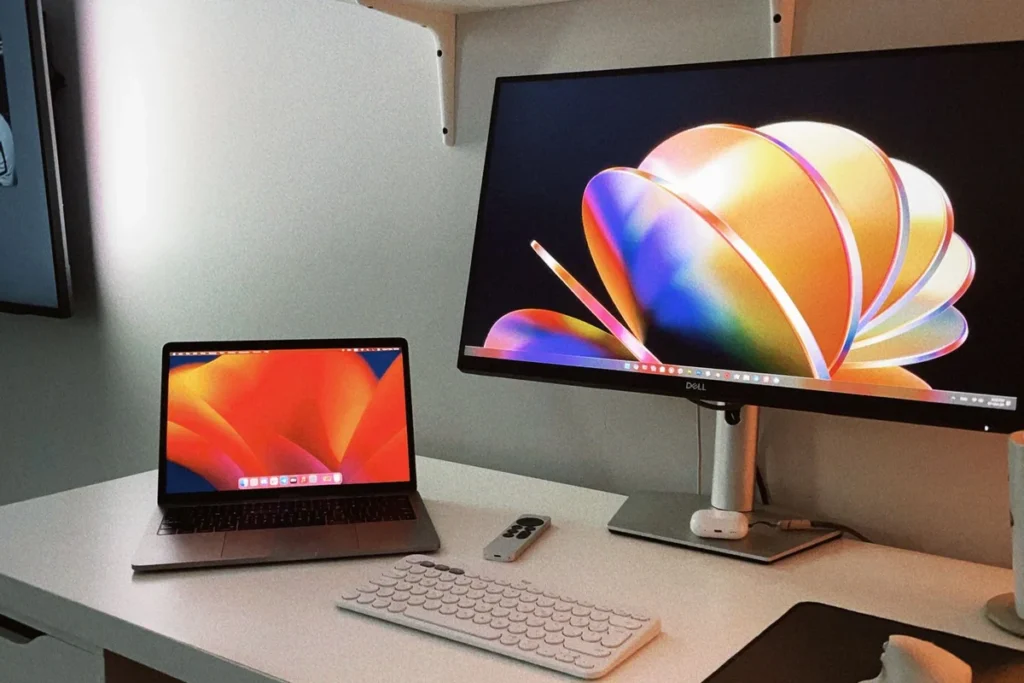
Clamshell mode means using your laptop with the lid closed while an external monitor, keyboard, and mouse do the work. On Windows, set the lid-close action to “Do nothing” and choose “Second screen only” for the display; on a Mac, connect power, a display, and an external keyboard and mouse, then close the lid. The laptop stays powered, awake, and out of the way.
As an Amazon Associate I earn from qualifying purchases.
How to Use Your Laptop in Clamshell Mode with a Monitor (2026)
The quotable rule: a laptop in clamshell mode is a desktop in disguise — the screen you stop using is the only thing that changes, so the monitor, keyboard, and power connection matter far more than the laptop itself.
If your laptop spends all day open on your desk while a bigger monitor sits beside it, you are giving up a square foot of desk to a keyboard you never touch. Closing the lid turns the laptop into a quiet box that powers a full desktop setup. Here is the whole setup, based on specs, prices, and owner feedback we compared.
What is clamshell mode, and what do you need?
Clamshell mode is the nickname for running a laptop with its lid closed, driving an external display instead of the built-in screen. The laptop becomes the computer, while everything you look at and touch lives outside it.
Only three things are mandatory: a monitor and a way to connect it, external input (a keyboard and mouse), and power — a Mac requires it, and a Windows laptop drains its battery fast driving an external display. A vertical stand is optional; it only saves desk space.
| Item | What it does | Typical price, as of November 2026 |
|---|---|---|
| External monitor | Replaces the built-in display | $180–$300 for a 27-inch 1440p model |
| Keyboard and mouse | Your only input once the lid closes | $20–$30 for a wireless combo |
| Power | Keeps the laptop awake and charging | Included charger, or a dock with power delivery |
| Cable or dock | Carries video, data, and power | $15–$25 for a cable; $140–$200 for a full dock |
| Vertical stand (optional) | Holds the closed laptop upright | $20–$50 |
Before buying anything, check one spec: the USB-C port must support DisplayPort Alt Mode or Thunderbolt for a single-cable dock setup — a plain USB-C data port charges the laptop but cannot drive a monitor.
How do you set up clamshell mode on Windows 11?
Windows does not enable clamshell mode by default — closing the lid puts the laptop to sleep. Two settings change that.
- Connect the monitor first, with the lid open. Plug it in with HDMI, DisplayPort, or USB-C, and confirm the picture appears.
- Tell Windows to use only the external display. Press Win + P and choose Second screen only.
- Change what closing the lid does. In Control Panel, go to Hardware and Sound, then Power Options, then “Choose what closing the lid does,” and set both “On battery” and “Plugged in” to Do nothing. Skip this and the laptop sleeps the moment the lid closes.
- Plug in power. A Windows laptop can run closed on battery, but an external display drains it fast — keep the charger connected.
- Connect the external keyboard and mouse. A 2.4 GHz wireless receiver in a USB port wakes the laptop most reliably.
- Let the keyboard or mouse wake the laptop. In Device Manager, open the keyboard and mouse entries, then Properties, then Power Management, and tick “Allow this device to wake the computer.”
- Close the lid and check the display settings. In Settings, then System, then Display, confirm the resolution matches the monitor — 2560×1440 at 60 Hz or higher for most 27-inch models.
If the monitor goes dark when the lid closes, reopen the lid setting in step 3 — it almost certainly did not save. Blurry picture? The cable is usually at fault: old HDMI 1.4 caps 4K at 30 Hz, while HDMI 2.0 and DisplayPort handle 4K at 60 Hz.
How do you set up clamshell mode on a Mac?
Macs handle clamshell mode differently: there is no lid-close setting, because macOS switches to the external display automatically once three conditions are met. Apple’s guidance: a Mac in closed-lid mode should be connected to power, an external display, and an external keyboard and mouse before you close the lid.
- Connect the display, power, and input devices with the lid open. Plug the monitor into a Thunderbolt or USB-C port, connect power or a dock that delivers it, and plug in or pair the keyboard and mouse.
- If you use Bluetooth peripherals, pair them now. Pair them while the lid is open — new devices cannot pair with the lid closed. In System Settings, then Bluetooth, switch on “Allow Bluetooth devices to wake this computer.”
- Close the lid. The built-in display turns off and the external monitor takes over within seconds. If it stays dark, open the lid, check Displays in System Settings, and close the lid again.
- Wake the Mac with the external keyboard or mouse. Press any key or click the mouse.
- Check the display settings. In System Settings, then Displays, confirm the resolution is the monitor’s native resolution.
One limitation: base Apple silicon chips (M1 through M4) support only one external display natively, even with the lid closed. Pro, Max, and Ultra chips support two or more; with a base-chip MacBook, a DisplayLink dock drives a second display through software.
| Setting | Windows 11 | macOS |
|---|---|---|
| Lid-close behavior | Manual: Power Options, “Do nothing” | Automatic once power, display, and input are connected |
| Choosing the display | Win + P, “Second screen only” | Automatic; arrange in System Settings, then Displays |
| Waking the laptop | External keyboard or mouse; enable wake in Device Manager | Press a key or click; enable Bluetooth wake |
| Power required | Recommended; works on battery but drains fast | Required, per Apple’s guidance |
| Extra monitors | Native on most laptops, limited by the GPU | One display on base Apple silicon; more on Pro/Max/Ultra, or via DisplayLink |
Do you need a vertical laptop stand?
No — the laptop works fine lying flat and closed beside the monitor. But a vertical stand is the single best purchase for a clamshell desk: a closed laptop lying flat still occupies its full footprint, roughly 12 by 9 inches, while doing nothing.
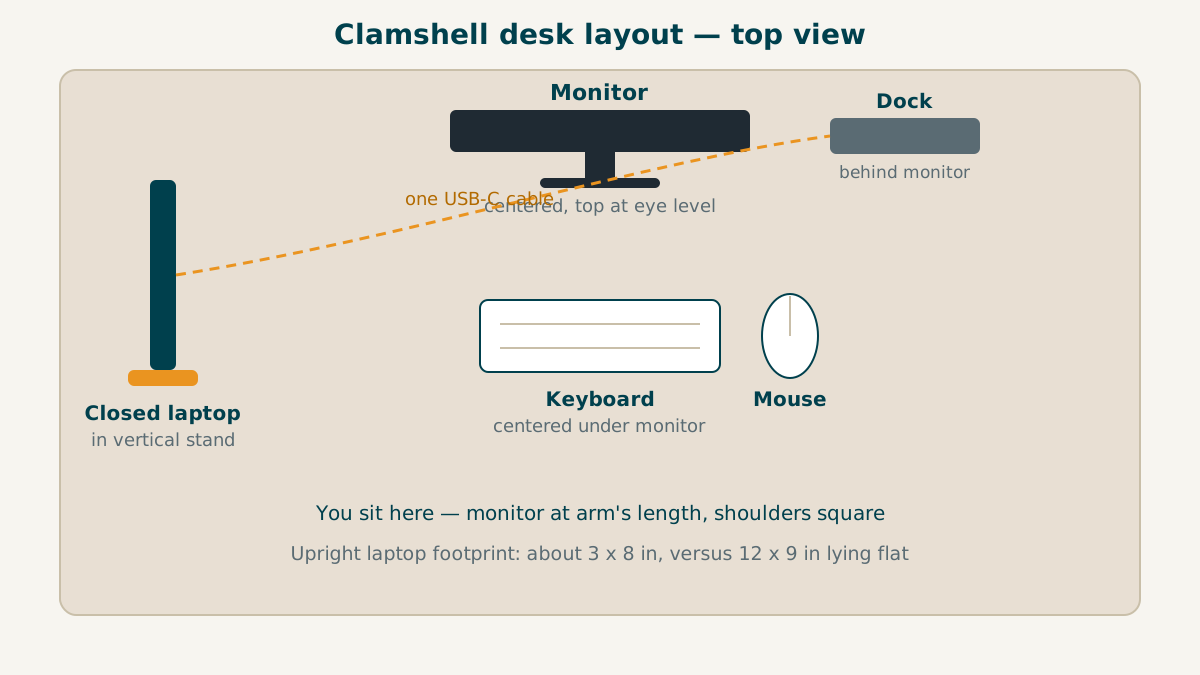
Standing the laptop upright shrinks that footprint to about 3 by 8 inches — close to 75% less desk space, and that recovered space is the whole point of closing the lid.
The stand to look at first is the Twelve South BookArc Flex, which adjusts from about 9 mm to 30.5 mm wide, fits laptops up to 16 inches and 1 inch thick, and sells for around $30–$50 as of November 2026. Its slot needs no plastic inserts, so it fits most MacBooks and Windows laptops; simpler stands do the same job for $15–$25. Our guide to the best laptop stands for desk setups compares the full range.
Check the slot width against your laptop’s thickness with its case on — a hard shell adds 2–3 mm. And keep the vents clear: most laptops exhaust hot air from the rear hinge or the sides, and a vertical stand leaves both open.
How do you connect everything with one cable?
The cleanest clamshell setup uses a single USB-C cable between the laptop and a dock, and the dock handles everything else: monitor, keyboard, mouse, Ethernet, and charging.
A dock makes sense with more than two or three peripherals. With just a monitor and a wireless keyboard-mouse combo, the laptop’s own ports are enough — add a second monitor, Ethernet, a drive, and a webcam, and the cable count gets out of hand.
The Anker 575 USB-C Docking Station (13-in-1) is a solid reference point: two HDMI ports plus a DisplayPort for up to three displays, 85W charging, three USB-A ports, a 10 Gbps USB-C data port, Gigabit Ethernet, and SD/microSD slots. It lists at $199.99 and regularly sells for around $140 on Amazon, as of November 2026. Our roundup of the best USB-C docking stations for dual monitors compares it against cheaper hubs.
One warning: not every USB-C cable carries video. The thin charging cable that came with a phone is usually USB 2.0 only and will never drive a monitor — use the cable that came with the dock or monitor, or one rated for video.
What keyboard and mouse work best in clamshell mode?
The keyboard and mouse are your only input once the lid closes. The decision that matters is wireless type: a 2.4 GHz receiver or Bluetooth.
A 2.4 GHz receiver is the safer choice: it connects at power-on and wakes the laptop from sleep reliably on Windows. Bluetooth works too, but it needs pairing while the lid is open, and on some laptops it will not wake the machine unless the wake setting is enabled.
For a budget setup, the Logitech MK270 Wireless Keyboard and Mouse Combo covers the basics: a full-size keyboard, a compact mouse, one shared nano receiver, a 36-month keyboard battery, and a 12-month mouse battery. It lists at $29.99 and was selling for $19.99 on Amazon in late October 2026. Heavy typists can budget $60–$90 for a hot-swappable mechanical board instead — but keep the wireless receiver, since a wired keyboard ties you to the desk every time you undock.
How should you arrange the desk in clamshell mode?
Closing the lid only helps if the desk is arranged around the monitor: monitor in front of you, keyboard centered under it, laptop off to one side — not behind the monitor, where vents get blocked.
- Monitor centered, at arm’s length. Your fingertips should just about touch the screen when you reach forward, and the top of the monitor should sit at or just below eye level.
- Keyboard centered under the monitor, mouse beside it. This keeps your shoulders square instead of twisted to one side.
- Vertical stand to the left or right of the monitor. Pick the side with the laptop’s ports facing the dock, so the cable run stays short.
- Cables routed behind the desk. One cable from laptop to dock, one from dock to monitor, and the receiver in the dock’s USB port. A $10 cable tray keeps them off the desk.
If you plan to add a second monitor later, read our guide to setting up dual monitors for working from home before buying the dock — a second display changes which ports and bandwidth you need.
What does a clamshell setup cost, and when should you buy?
Most people already own the expensive part — the laptop. The rest is a monitor, a stand, and input devices.
| Item | Budget option | Mid-range option |
|---|---|---|
| 27-inch 1440p monitor | $180–$220 | $250–$300 |
| Vertical laptop stand | $15–$25 | $30–$50 |
| Keyboard and mouse combo | $20–$30 | $60–$90 |
| USB-C dock | $40–$70 hub | $140–$200 full dock |
| Typical total | $255–$345 | $480–$640 |
If you are not in a hurry, Black Friday week (Nov 27–30) is when docks and stands hit their yearly floor — our Black Friday laptop accessory deals guide tracks the discount bands to expect. Monitors drop deepest, often 25–40% off.
What if something goes wrong?
Most clamshell problems have one of three causes: the lid setting, the cable, or the wake setting.
| Problem | Likely cause | Fix |
|---|---|---|
| Laptop sleeps when the lid closes | Lid action still set to Sleep | Windows: Power Options, set both lid actions to “Do nothing” |
| External display stays black | Cable, port, or wrong monitor input | Check the monitor’s input source; try another port or cable |
| Keyboard or mouse will not wake the laptop | Wake disabled for the device | Windows: Device Manager, allow the device to wake the computer; Mac: enable Bluetooth wake |
Heat is the worry that stops most people from closing the lid. A modern laptop is designed to run closed, and it draws cooling air from the sides and rear, not through the keyboard — heat problems come from blocking those vents, such as a closed laptop on a soft surface or against a wall. A vertical stand avoids both.
Frequently asked questions
Can any laptop run in clamshell mode?
Yes — any modern Windows laptop or MacBook with an external display output supports it, though Macs need power, a display, and external input connected first.
Does clamshell mode damage the laptop or make it overheat?
No, as long as the vents stay clear — laptops cool through side and rear vents, not the keyboard, so a closed lid does not block airflow.
Can I use two external monitors in clamshell mode?
Yes on most Windows laptops — but base Apple silicon MacBooks (M1 through M4) support just one external display natively; a DisplayLink dock adds a second.
The bottom line
Clamshell mode is a five-minute settings change and a short shopping list: a monitor, a keyboard and mouse, power, and optionally a stand and a dock. The laptop you already own becomes a desktop.
The quotable rule: if your laptop never leaves the desk, the lid is a screen you pay rent for in desk space — close it, stand it up, and let the monitor do the looking.