Best KVM Switch for Multiple Computers (2026)
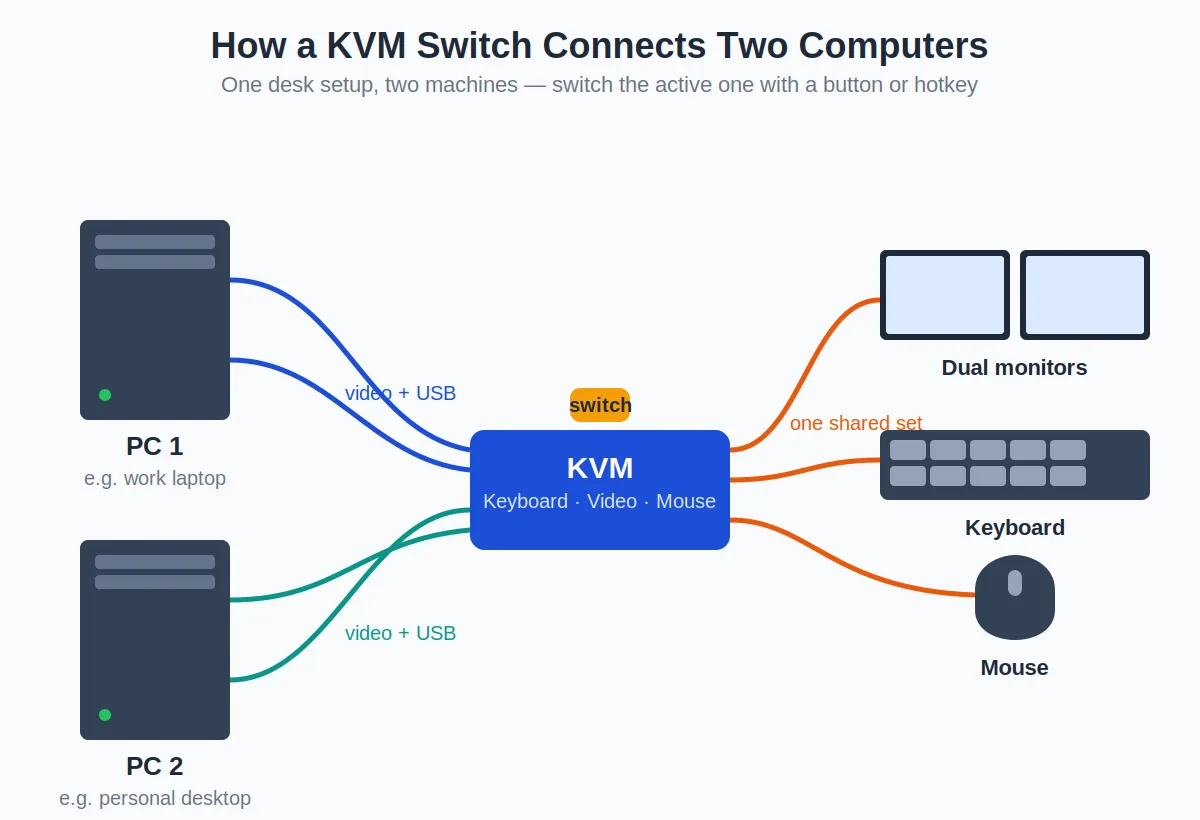
A KVM switch lets one keyboard, video (monitor), and mouse control multiple computers — press a button or hotkey and your whole desk setup jumps from your work laptop to your personal PC. The best KVM switch for most people is the TESmart HKS0401A2U: dual-monitor 4K at 60Hz, four computers, USB hub, around $200–$280 as of October 2026. If you switch between a USB-C laptop and a desktop, get a USB-C KVM like the TESmart CKS402 instead. On a tight budget, the IOGEAR GCS632U (~$40–$60) handles two computers at 1080p. A KVM is the missing piece in any multi-computer desk setup — see our desk accessories guide for the rest of the stack.
As an Amazon Associate I earn from qualifying purchases.
The Short Answer: Top Picks by Setup
Best for dual monitors: TESmart HKS0401A2U (~$200–$280) — dual 4K at 60Hz, 4 computers, USB 3.0 hub, hotkey and button switching.
Best for USB-C laptops: TESmart CKS402-P (~$250–$350) — single-cable USB-C docking plus KVM switching for laptop + desktop.
Best budget: IOGEAR GCS632U (~$40–$60) — 2 computers, 1080p, dead simple. The minimum viable KVM.
Best mid-range simple: UGREEN 4K60 2-Port KVM (~$80–$120) — 2 computers, 4K at 60Hz, no fuss.
Best no-compromise: Level1Techs 1.4 DisplayPort KVM (~$400–$550) — the enthusiast pick for high-refresh and multi-monitor perfectionists.
What Is a KVM Switch, and Do You Actually Need One?
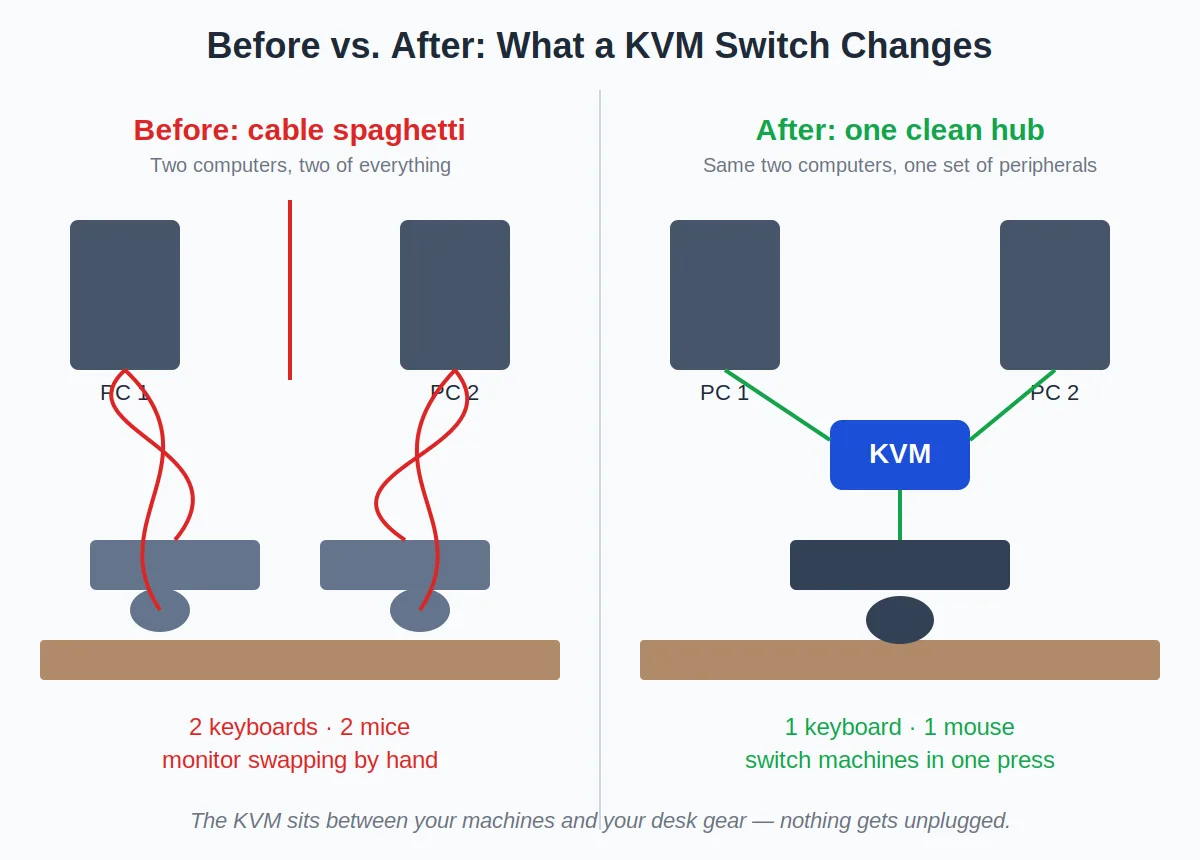
KVM stands for Keyboard, Video, Mouse. The switch sits between your computers and your peripherals: plug two (or four) computers into it, plug your monitor, keyboard, and mouse into it, and switch which computer you’re controlling with a button press, a keyboard hotkey, or a remote.
You need one if any of these sound familiar:
- Work laptop + personal desktop on the same desk, and you’re tired of swapping cables twice a day.
- Two work machines (common for contractors or anyone with separate client hardware).
- A Mac and a PC sharing one nice monitor setup.
- A home server or test machine you access occasionally without a dedicated screen.
The alternative most people try first is plugging both computers into the monitor and switching inputs — but that only switches the display. Your keyboard and mouse stay married to one machine unless you also switch their USB connections, which is exactly the tedium a KVM eliminates. (Software options exist too — more on those below.)
What to Check Before Buying: The 6 Specs That Matter
1. Resolution and refresh rate. This is where cheap KVMs fail. A switch rated for 1080p will choke on a 4K monitor — you’ll get a black screen, flicker, or a forced lower resolution. Match the KVM to your monitor: 4K at 60Hz minimum for modern 4K displays, and check refresh rate if you game (144Hz+ needs a DisplayPort 1.4 KVM like the Level1Techs).
2. Number of computers and monitors. Count both. A “4-port” KVM usually means 4 computers sharing one monitor setup; dual-monitor KVMs are a separate (pricier) category. If you run dual monitors, you need a dual-monitor KVM — a single-monitor switch will leave your second screen dark on one machine.
3. USB hub version. Your keyboard and mouse need USB ports on the switch, and USB 2.0 vs 3.0 matters if you also want to share a webcam, microphone, or external drive. USB 3.0 hubs are worth the small premium.
4. Switching method. Button on the box (simple, but you reach for it), keyboard hotkey (fastest once muscle memory kicks in), or remote/wired remote (nice if the box lives under the desk). Most good switches offer at least two.
5. USB-C vs DisplayPort/HDMI. USB-C KVMs double as docks: one cable carries video, USB, and often power to a laptop. If one of your machines is a modern laptop, USB-C simplifies the cable spaghetti enormously — see our cable management ideas for the full war on desk cables.
6. EDID emulation. The boring spec that prevents the annoying problem: without it, switching computers can make windows rearrange themselves as the “disconnected” machine thinks its monitor vanished. EDID emulation fakes a constant monitor presence. Premium switches have it; budget ones often don’t.
The Ranking: 5 KVM Switches Worth Buying
1. TESmart HKS0401A2U — best for dual monitors (~$200–$280)
TESmart owns the mid-range KVM market for a reason. The HKS0401A2U handles four computers across dual monitors at 4K 60Hz, with a USB 3.0 hub, audio support, and switching via front-panel button, keyboard hotkey, or IR remote. EDID emulation keeps your window layouts intact when switching.
Typical price as of October 2026: $200–$280. That’s real money for a desk accessory, but it replaces roughly $100 of cables, adapters, and a USB hub you’d buy piecemeal — and the daily friction it removes is worth more than the hardware. This is the default recommendation for dual-monitor multi-computer setups.
A USB-C docking station is worth considering — our guide covers the best options.
See our monitor desk setup guide for the full setup walkthrough.
2. TESmart CKS402-P — best for USB-C laptops (~$250–$350)
If one of your machines is a USB-C laptop, this is the elegant answer: a single USB-C cable carries the display signal, USB peripherals, and laptop charging, while the KVM side handles your desktop via HDMI/DisplayPort. Switch between laptop and desktop with a hotkey; the laptop docks and undocks with one cable.
Around $250–$350 as of October 2026. The premium over the HKS0401A2U buys the USB-C docking functionality — worth it if your daily routine involves plugging and unplugging a laptop. Check your laptop’s USB-C port supports DisplayPort Alt Mode (most modern ones do; some budget laptops don’t).
3. UGREEN 4K60 2-Port KVM — best mid-range simple (~$80–$120)
Not everyone needs four computers and a remote control. The UGREEN 2-port KVM does the core job — two computers, one monitor setup, 4K at 60Hz, USB hub — with a single button and no configuration. Around $80–$120 as of October 2026.
The trade-offs versus TESmart: fewer ports, no EDID emulation (windows may reshuffle on switch), and a simpler USB hub. For the classic work-laptop-plus-personal-PC scenario, none of that matters much.
4. IOGEAR GCS632U — best budget (~$40–$60)
The GCS632U is the minimum viable KVM: two computers, 1080p video, USB keyboard/mouse sharing, one button. Around $40–$60 as of October 2026 — often less on sale.
Be clear about the limits: 1080p max (it will not drive your 4K monitor properly), USB 2.0 only, no audio switching, no EDID emulation. But if your second machine is an older PC or a Raspberry Pi on a 1080p side monitor, this is all the KVM you need, and it’s cheaper than the cables you’d otherwise buy.
5. Level1Techs 1.4 DisplayPort KVM — best no-compromise (~$400–$550)
Level1Techs (run by Wendell of Level1Techs fame) makes the KVM that enthusiasts buy when they’ve been burned by everything else. DisplayPort 1.4 with high refresh rates, proper EDID emulation, excellent USB handling, and build quality that justifies the price.
Typical price as of October 2026: $400–$550 depending on port count. This is overkill for office work — buy it if you run high-refresh monitors, multiple 4K displays, or you’ve already returned two cheaper switches. For everyone else, the TESmart options deliver 95% of the experience at half the price.
Comparison Table: All 5 KVM Switches at a Glance
| KVM switch | Computers | Monitors | Max resolution/refresh | USB hub | Switching method | Typical price (Oct 2026) |
|---|---|---|---|---|---|---|
| TESmart HKS0401A2U | 4 | 2 | 4K @ 60Hz | USB 3.0 | Button, hotkey, remote | $200–$280 |
| TESmart CKS402-P | 2 | 1–2 | 4K @ 60Hz | USB 3.0 + USB-C dock | Button, hotkey | $250–$350 |
| UGREEN 4K60 2-Port | 2 | 1 | 4K @ 60Hz | USB 2.0/3.0 | Button | $80–$120 |
| IOGEAR GCS632U | 2 | 1 | 1080p | USB 2.0 | Button | $40–$60 |
| Level1Techs DP 1.4 | 2–4 | 1–2 | 4K @ 144Hz+ | USB 3.0 | Button, hotkey | $400–$550 |
The Alternatives: When You Don’t Need a KVM
A hardware KVM isn’t the only answer. Consider these first:
- Monitor input switching + a multi-device keyboard/mouse. Many monitors have multiple inputs; switch the input, then flip your Logitech MX Keys or similar between devices with a button. Cheaper than a KVM, slightly more steps per switch.
- Software KVM (Synergy, Barrier, Input Leap). These share one keyboard and mouse across computers over your network — no video switching, so each machine needs its own display (or you use remote desktop). Great for multi-monitor multi-computer setups where each PC keeps its screen.
- A docking station with two inputs. Some USB-C docks accept two host connections. It’s a niche product category, but if your setup is laptop + desktop, a dual-host dock can replace both dock and KVM.
The honest rule: if you switch machines more than a few times a day, a hardware KVM pays for itself in saved annoyance within a month. If it’s once a day, the monitor-input dance is fine.
Frequently Asked Questions
Does a KVM switch add input lag?
For keyboard and mouse, no perceptible lag on any decent switch — it’s a USB passthrough, not processing. For video, cheap switches can introduce handshake delays when switching (a second or two of black screen), but there’s no ongoing latency during use. Gamers should stick to DisplayPort 1.4 models like the Level1Techs.
Can a KVM switch handle dual monitors?
Yes, but you need a dual-monitor KVM specifically — a single-monitor switch leaves the second display disconnected on one machine. The TESmart HKS0401A2U is the go-to dual-monitor pick. Budget accordingly: dual-monitor KVMs start around $200, versus $40–$120 for single-monitor ones.
KVM switch vs docking station — what’s the difference?
A docking station connects one computer to many peripherals; a KVM switch connects many computers to one set of peripherals. They’re complementary: many multi-computer setups use a dock for the laptop and a KVM to share everything with the desktop. USB-C KVMs like the TESmart CKS402 blur the line by doing both.
Will my windows rearrange when I switch computers?
They can, on switches without EDID emulation — the inactive computer thinks its monitor was unplugged and shuffles windows to the “remaining” display. Switches with EDID emulation (TESmart HKS0401A2U, Level1Techs) fake a constant monitor connection and prevent this. It’s the single best reason to buy above the budget tier.
Can I share audio through a KVM switch?
Most mid-range and premium switches include audio switching (usually via 3.5mm or HDMI audio extraction). Budget switches like the IOGEAR GCS632U typically don’t — you’ll need to switch audio separately or use a USB headset that moves with the active machine.
Do I need a KVM if I only have a work laptop and a personal laptop?
Probably not a hardware one — a USB-C dock plus your monitor’s input switching usually covers two laptops. A KVM earns its keep when at least one machine is a desktop (no easy undocking) or when you switch several times daily.
The Bottom Line
For dual-monitor multi-computer setups, the TESmart HKS0401A2U is the clear default — 4K60, four computers, and switching that just works. USB-C laptop users should look at the CKS402-P instead, and budget shoppers can get by with the IOGEAR GCS632U at 1080p. Whichever you choose, pair it with tidy cable management — a KVM adds cables before it removes the hassle of them, and a monitor arm keeps the desk clear enough to actually enjoy the setup.