
The Complete Desk Accessories Guide: Build a Smarter Home Office Desk (2026)
The best desk accessories are the ones that remove daily friction: glare-free lighting, cables you never see, a keyboard and mouse that feel effortless, and a surface with room to think. You do not need dozens of gadgets — five to seven well-chosen pieces cover lighting, ergonomics, organization, and input. This guide maps each category and links to our in-depth reviews so you can go deeper wherever it matters to you.
Why do desk accessories matter more than another gadget?
Your desk, chair, and monitor get all the attention, but accessories determine whether your workday feels smooth or friction-filled. Every accessory worth buying does one of four jobs: it helps you see comfortably, move comfortably, think clearly, or power everything invisibly. That is the test this entire guide applies: the right accessory disappears into your workflow; the wrong one becomes another thing to manage. For the deeper case, read how desk accessories actually affect your productivity.
What should I buy first if I am starting from scratch?
Buy in this order, and stop when your setup feels right — most people never need all four stages.
- Light your desk properly. A lamp or light bar is the highest-impact first purchase. Bad lighting causes the eye strain and headaches people blame on their screens.
- Hide your cables. A tray, a handful of ties, and one afternoon of work permanently remove the messiest thing in the room.
- Fix your input. A comfortable keyboard, mouse, and a desk mat under them — the three objects you physically touch all day.
- Organize your daily tools. A headphone hanger, a small organizer, a phone dock. Only after the big three are solved.
If you want product picks instead of a buying order, our ranked list of the best desk accessories for home offices covers the upgrades owners consistently say were worth it, category by category.
How do desk accessories compare at a glance?
| Category | What it fixes | Typical cost | Setup effort |
|---|---|---|---|
| Lighting (lamp or light bar) | Eye strain, screen glare, unflattering video-call lighting | Budget to premium depending on features | A few minutes |
| Cable management (tray, ties, spine) | Floor clutter, tangled cords, dust traps behind the desk | Budget — mostly hardware and ties | One focused afternoon |
| Desk mat | Cold or hard surface, inconsistent mouse tracking, desk scratches | Budget | A few minutes |
| Keyboard | Typing comfort, noise level, wrist angle | Mid-range for quality mechanical or premium membrane | A few minutes |
| Mouse | Wrist and shoulder strain from a flat, cheap mouse | Budget to mid-range | A few minutes |
| Headphone storage | Desk clutter and cracked headbands from tossing headphones aside | Budget | A few minutes |
How should I light my desk?
Light the desk, never the screen. That single rule settles most lighting debates. If your lamp shines into your monitor, it is a decoration, not lighting.
A monitor light bar clips onto the top of your monitor and washes the desk in glare-free light: zero desk footprint, no screen glare, and many models auto-dim as the room darkens. Our guide to the best monitor light bars compares the top options, and the monitor light bar vs desk lamp comparison walks through the tradeoffs.
A desk lamp still earns its place for paperwork, reading, and putting flattering light on your face for video calls. What matters most: adjustable color temperature — warm in the evening, daylight during work hours — plus a head you can aim. Our guide to the best desk lamps covers the specs worth paying for, and desk lamps for video calls are built to light your face evenly without harsh shadows.
Many good setups use both. If your eyes feel tired at the end of the day, fix lighting before you blame your monitor.
Where does each accessory go on my desk?
Placement matters as much as the product. A great headphone stand in the wrong spot is still clutter. Think of your desk in five zones, working from the back edge forward.
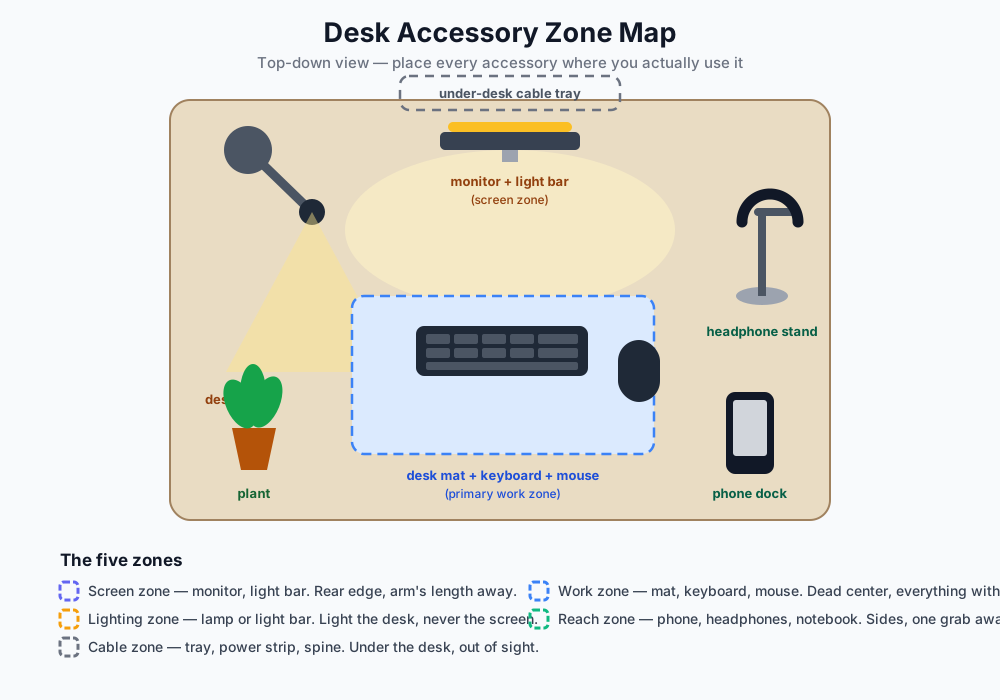
The rules are simple: screen zone at the back, an arm’s length away; work zone — mat, keyboard, mouse — owning the dead center; reach zone at the sides for phone, headphones, and notebook; cable zone underneath, out of sight. When a new accessory arrives, ask which zone it belongs to before finding it a spot.
A printer stand is worth considering — our guide covers the best options.
How do I hide my cables for good?
Cable management is a system, not a product. Buy one tray and call it done, and the mess returns within a month. Work through the stack instead, top to bottom.
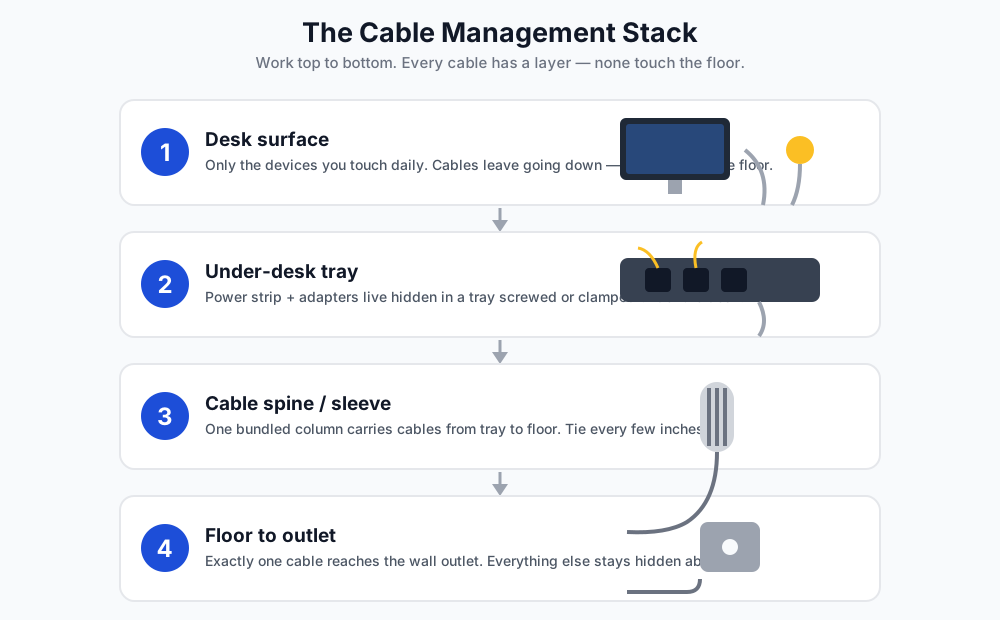
- Desk surface. Only the devices you touch daily stay up here. Every cable leaves going down — never across the floor to the wall.
- Under-desk tray. The power strip and all adapters live hidden in a tray screwed or clamped under the desk. This is the single biggest visual win.
- Cable spine or sleeve. One bundled column carries cables from the tray to the floor, with Velcro ties every few inches — skip zip ties unless a cable will never move.
- Floor to outlet. Exactly one cable reaches the wall outlet. Everything else stays hidden above it.
If a cable touches the floor between your desk and the wall, the system failed — trace it back and find which layer broke. For the full walkthrough, read how to hide cables under your desk; for layout ideas, browse desk cable management ideas; for budget builds, try DIY cable management projects.
Which keyboard and mouse should I choose?
You touch your keyboard more than any other object you own. It is the last place to economize — and the first upgrade people say they wish they had made years earlier.
Start with noise, because it decides the category. In a shared room, a loud clicky keyboard is a social problem, not a preference. Quiet mechanical keyboards that won’t annoy coworkers keep the tactile feel with silent switches, and our mechanical vs membrane keyboards for office work guide covers the broader tradeoff.
If you have narrowed it to Logitech’s two flagship office boards, our Logitech MX Keys vs MX Mechanical comparison breaks down scissor versus mechanical switches so you can pick what your fingers will enjoy for eight hours.
Then the mouse: a flat, cheap mouse forces your wrist into pronation all day, and the fix is shape, not features. The right size for your hand matters more than the DPI number. Our guide to the best ergonomic mice for office work covers the shapes that actually relieve wrist and shoulder strain.
One more rule: pair a laptop stand with an external keyboard and mouse. The moment your laptop screen rises to eye level, its built-in keyboard becomes unreachable — the external set is the other half of the ergonomics fix.
What about the small stuff — mats, hangers, organizers?
Small accessories earn their place by protecting the big investments or by keeping the work zone clear.
A desk mat defines your primary work zone: consistent mouse tracking, cushioning against a hard desk edge, and scratch protection. Get one large enough for keyboard and mouse with room to spare — around 900 by 400 millimeters suits most desks. Our guide to the best desk mats for home offices covers materials and sizes.
A headphone hanger solves a real problem: headphones tossed on the desk collect dust and eat surface area. An under-desk headphone hanger clamps to the desk edge, keeping them within reach and off the work surface — one of the cheapest upgrades with the most visible difference.
Beyond that, add only what solves a recurring annoyance: an organizer for migrating pens and chargers, a phone dock, a plant for the empty corner. If you cannot name the friction it removes, you do not need it yet.
Small upgrades drop 15–30% during Black Friday week and stack well with a bigger purchase — see our Black Friday desk accessory deals guide.
A mini desk vacuum is worth considering — our guide covers the best options. A filing cabinet is worth considering — our guide covers the best options.
What should I avoid buying?
- The whole setup at once. Buy in priority order and let real annoyances pick the next purchase. Batch-buying produces a desk full of things you never use.
- Novelty gadgets. Mini vacuums, USB-powered toys, motorized anything you will demonstrate once. If it does not do one of the four jobs — see, move, think, power — skip it.
- “Ergonomic” without adjustability. An ergonomic label means nothing if the height, angle, or tension cannot change to fit your body.
- Single-use organizers. A tray that fits exactly one model of one device is a future drawer of junk. Prefer modular storage.
- RGB for the sake of RGB. Bias lighting behind the monitor genuinely reduces eye strain in dark rooms; rainbow keyboards do not. Spend the lighting budget where it helps your eyes.
Frequently asked questions
How many desk accessories do I actually need?
Five to seven cover nearly every setup: a light source, a cable tray with ties, a keyboard, a mouse, a desk mat, and headphone storage. Add more only when a specific daily annoyance survives the first six.
Should I get a monitor light bar or a desk lamp?
A light bar is best for evening screen work — no footprint, no glare, auto-dimming. A desk lamp is better for paperwork, reading, and lighting your face on video calls. Many setups benefit from both, each aimed at its own job.
Can I do cable management in a rental without drilling?
Yes — clamp-on trays, adhesive cable channels, and Velcro ties need no holes. The full stack works exactly the same.
Are quiet mechanical keyboards really quiet enough for a shared space?
Good ones are. Linear or silent switches in a well-damped board stay at a soft thock that does not carry across a room — the key is avoiding clicky switches, which are designed to be heard.
What size desk mat should I get?
Large enough for your keyboard and mouse with room to spare on both sides — typically around 900 by 400 millimeters for a standard desk. Bigger is better than smaller; an undersized mat just moves the edge problem inward.
Do desk accessories actually improve productivity?
They remove friction rather than add speed: you will stop losing time to tangled chargers, glare, and a hunting mouse. The mechanism is covered in our guide to desk accessories and productivity.
Build it in stages, not in one order
The perfect desk is not bought; it is iterated. Start with light and cables, fix what you touch, then let the small annoyances reveal themselves. Every category here links to a deeper review — continue with the full accessories roundup — and buy the next piece only when you can name the friction it removes.