How to Set Up Triple Monitors for Work (2026 Guide)
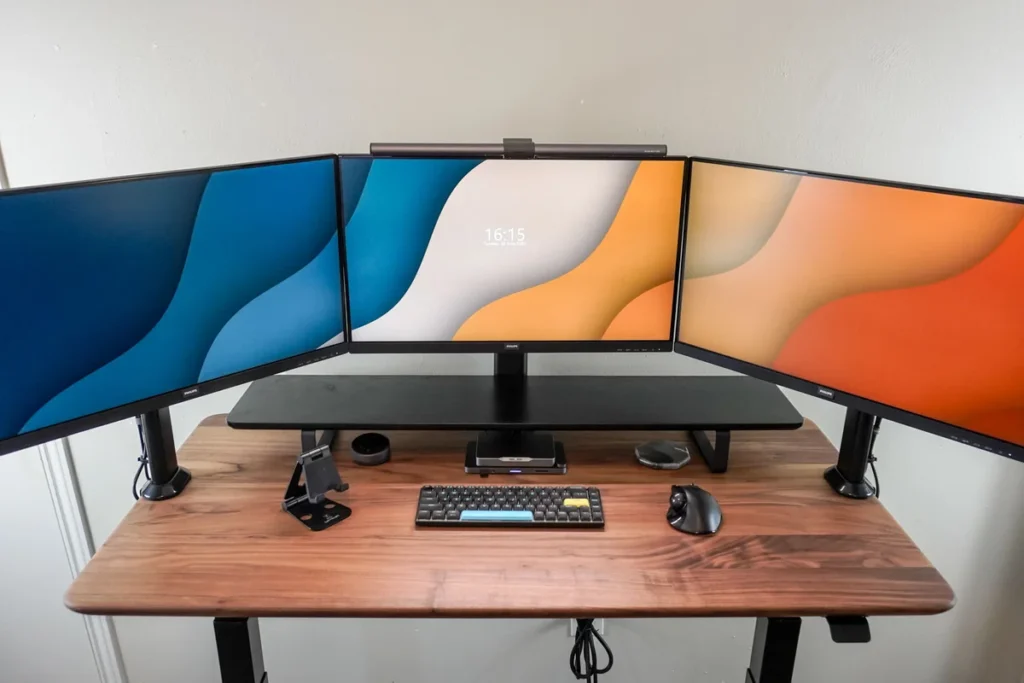
To set up triple monitors for work, you need three video outputs (from your GPU, laptop, or a USB-C dock), a triple monitor arm to mount the displays, and a few minutes in display settings to arrange the screens. Angle the side monitors 15–20° inward with the center screen directly in front of you.
Quick verdict: A triple-monitor work setup needs three video outputs, one mounting solution, and about an hour of your time. Budget $90–$180 for the mount on top of the monitors themselves. The two decisions that actually matter: how you connect the third display (spare GPU port vs. a dock) and how far you angle the side monitors inward (15–20°, never flat).
What do you need for a triple-monitor work setup?
Three monitors are the obvious part. The rest of the shopping list is shorter than most people expect:
- Three video outputs — from a desktop GPU, a laptop’s ports, or a dock (details below)
- One mounting solution — a triple monitor arm ($80–$150), three single arms, or a freestanding stand
- Cables to match your ports — budget $15–$25 per cable if you don’t already own them
- A desk at least 24 inches deep and 55+ inches wide (for 27-inch triples)
- A power strip with room for 4–6 plugs
One thing you don’t strictly need: three identical monitors. Matching size and resolution makes mouse movement and window dragging feel seamless, but plenty of productive setups mix a 27-inch center with 24-inch sides. If you’re upgrading from two screens, our dual-monitor setup guide covers the two-screen basics this guide builds on.
All prices below are typical US street prices as of October 2026.
What GPU and ports do you need for three monitors?
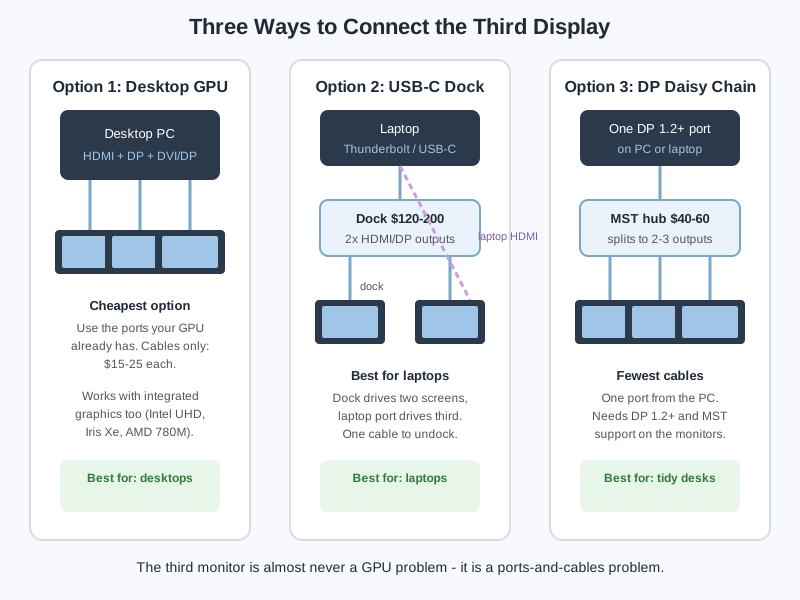
Here’s the good news: the third monitor is almost never a GPU horsepower problem — it’s a ports-and-cables problem. Driving three 1080p or 1440p desktop displays takes very little graphics power; even integrated graphics from the last five years can do it.
- Desktop with a dedicated GPU: Nearly every graphics card sold since around 2016 has at least three outputs (typically a mix of HDMI, DisplayPort, and DVI or USB-C). Plug each monitor into its own port and you’re done — no configuration beyond arranging the displays.
- Desktop with integrated graphics: Intel UHD 630 and newer, Intel Iris Xe, and AMD Ryzen APUs (including the Radeon 780M) officially support three simultaneous displays. The catch: check that your motherboard actually exposes three video outputs, since some budget boards only wire up two of them.
- The port math that trips people up: Count physical outputs, not raw GPU power. A graphics card with one HDMI and one DisplayPort can only drive two monitors directly — the third needs a dock, an MST hub, or a USB adapter regardless of how fast the card is.
- DisplayPort daisy-chaining (MST): A single DisplayPort 1.2+ output can drive two or three monitors through an MST hub ($40–$60) or by chaining monitors that have DP-out ports. Total bandwidth is shared, so three 4K monitors on one DP 1.4 port won’t all run at 60 Hz — but three 1080p or 1440p panels will run happily.
- Laptops: Most Windows laptops can drive two external displays via Thunderbolt/USB-C plus one more from their built-in HDMI port — a $120–$200 USB-C dock with dual HDMI/DisplayPort outputs is the cleanest path. For docks that handle multi-monitor setups well, see our USB-C docking station guide.
- USB display adapters: DisplayLink-based USB-to-HDMI adapters ($50–$90) add a third screen to almost anything, using CPU instead of GPU. Fine for email, Slack, and spreadsheets; not for video editing or color-critical work.
Should you use one triple monitor arm or three single arms?
| Mounting option | Typical price (Oct 2026) | Best for | Watch out for |
|---|---|---|---|
| Single triple-monitor arm | $80–$150 | Cleanest look, one desk clamp, easy alignment | Screen-size caps (~27–32 in max); total weight limits |
| Three single monitor arms | $105–$180 ($35–$60 each) | Mixed monitor sizes, swapping one display later | Three clamps eat desk-edge space; more cables to route |
| Freestanding triple stand | $100–$180 | Glass desks you can’t clamp, renters | Big base footprint eats desk depth |
| Premium gas-spring triple arm | $150–$250 | Frequent height tweaks, heavy 32-inch triples | Overkill if you set height once and forget it |
Three specs decide whether a mount works: the VESA pattern (75×75 or 100×100 — check the back of your monitors), the weight rating per arm (most support 14–19 lbs per screen; a 27-inch monitor is typically 9–14 lbs without its stand), and desk thickness for clamp mounts (most fit 0.4–3.3 inch tops). The shortlist logic in our dual monitor arm guide applies here too — honest weight ratings and VESA compatibility matter more than brand names.
A note on stands vs. arms for work: the original feet that come with monitors are the worst option for triples. Three sets of feet eat roughly 8 inches of desk depth and make alignment a daily annoyance. Any of the mounting options above beats stock feet.
How should you position three monitors ergonomically?
- Center monitor: Dead ahead, top bezel at or just below eye level, 24–32 inches from your eyes (roughly arm’s length). This is your primary screen — email, code editor, main document.
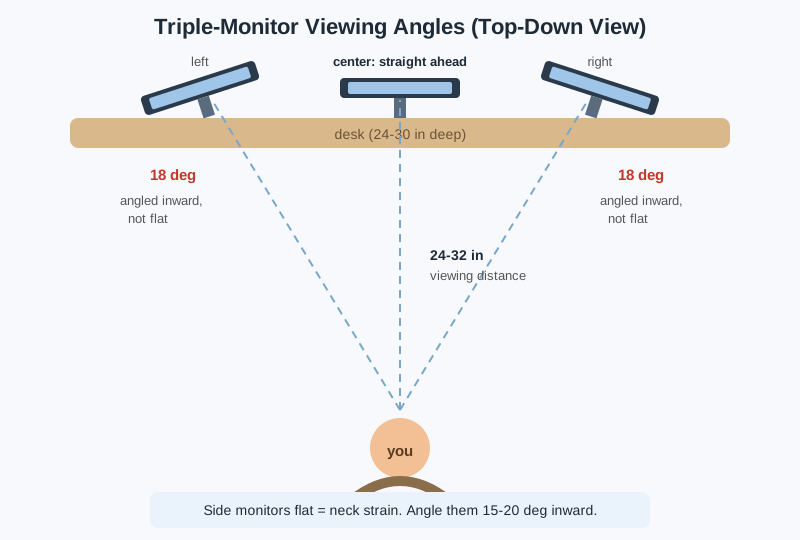
- Side monitors: Angled 15–20° inward toward you, tops aligned with the center. Never leave them flat — flat side monitors force 45°+ neck turns every time you glance over, which is where triple-monitor neck pain comes from.
- The arc test: Sit down, close your eyes, turn your head toward each side monitor. If you feel the turn in your neck rather than just your eyes, angle that monitor inward more.
- Portrait sides (optional): Rotating the side monitors to portrait is superb for code, long documents, and chat or Slack columns — but only if your arms support 90° rotation, and portrait 27-inch monitors demand serious vertical clearance.
- Height: If the center monitor sits too low on its arm, your chin drops and your neck flexes all day. Raise it so your gaze lands on the top third of the screen when you’re sitting tall.
Neck pain from triple monitors is almost always a flat-side-monitor problem, not a three-monitor problem. The diagram below shows the target geometry from above.
How do you configure triple monitors in Windows 11?
- Connect all three displays and power them on before booting (hot-plugging works too — Windows handles it).
- Open Settings → System → Display. Click Detect if a screen is missing.
- Drag the numbered rectangles to match your physical layout. This is the step everyone skips — if Windows thinks monitor 2 is on the left when it’s physically on the right, your mouse will “jump” between screens.
- Click the center display’s rectangle, scroll down, and check Make this my main display.
- Set scaling per monitor: 100% for 24-inch 1080p, 125% for 27-inch 1440p, 150% for 27-inch 4K. Mismatched scaling is the number-one cause of blurry text on multi-monitor setups.
- Under Advanced display, set refresh rates — matching all three (for example, all at 60 Hz or all at 75 Hz) prevents stutter when dragging windows across screens.
- Taskbar: Settings → Personalization → Taskbar → Taskbar behaviors — choose whether the taskbar shows on all displays or just the main one.
What about triple monitors on a Mac?
Apple Silicon Macs have hard limits on external displays, and those limits are the single biggest source of triple-monitor disappointment:
- Base M1/M2 chips: 1 external display natively. Base M3: 2 externals (with the lid closed). Base M4: 2 externals.
- Pro/Max/Ultra chips (M1 Pro and newer): 2–4+ externals depending on the chip — a MacBook Pro with M3 Pro, for example, drives its internal display plus two 6K externals without breaking a sweat.
- The workaround: DisplayLink docks ($100–$200) add extra displays through a software driver, bypassing Apple’s limit. It works fine for office work — spreadsheets, browsers, Slack — but adds slight latency and CPU load, so skip it for video editing or design work.
- Arrange displays in System Settings → Displays: drag the blue rectangles to match your physical layout, and set the primary display by dragging the white menu bar onto it.
How much desk space do three monitors need?
- Three 24-inch monitors: About 62 inches wide in total — fits a 60-inch desk with arms.
- Three 27-inch monitors: About 68–72 inches wide — a 72-inch desk is ideal; 60 inches works if the arms tuck the sides slightly behind the center.
- Depth matters more than width: 24 inches is the minimum for a comfortable viewing distance; 30 inches lets you push the arc back and reclaim foreground desk space for a notebook or keyboard tray.
- Cables: Three display cables plus three power cables. A $15 cable raceway or sleeve under the desk keeps it sane.
- Power: Monitors draw roughly 25–45W each. A PC plus three monitors on a single quality power strip is fine — just don’t share that strip with a space heater.
How do you fix common triple-monitor problems?
- One monitor not detected: Reseat the cable, try a different port, then update your GPU driver. On laptops, plug the dock in before waking from sleep.
- Mouse jumps between screens: The Display settings layout doesn’t match your physical layout — drag the rectangles (Windows) or blue boxes (Mac) into the right order.
- Blurry text on one monitor: Per-monitor scaling mismatch. Set each display’s scale to match its size and resolution (see step 5 in the Windows section).
- Monitors wake in the wrong order: Use the same connection type for all three if possible; mixed HDMI/DP/USB-C connections confuse the wake order.
- Colors don’t match: Same-model monitors still vary. Run Windows’ built-in color calibration (or the macOS Display Calibrator) on each — or just accept slight differences on the side monitors, where you mostly park reference material.
- GPU fans spin up at idle: Lower the side monitors’ refresh rate to 60 Hz. You won’t notice the difference on static content, but your GPU will.
When is the cheapest time to buy the setup?
Monitor arms, docks, and cables are commodity accessories with predictable discount cycles. If you’re not in a hurry, Black Friday week (Nov 27–30) is when monitor arms and docks hit their yearly floor — our Black Friday home office deals guide tracks the discount bands to expect. Outside sale season, arms from VIVO, HUANUO, and Amazon’s house brands sit at stable street prices, so there’s no penalty for buying the mount now and adding the monitors later.
Frequently asked questions
Can I run triple monitors without a dedicated graphics card?
Yes. Modern integrated graphics — Intel Iris Xe, AMD Radeon 780M, Apple Silicon Pro/Max — drive three displays as long as you have three physical video outputs (or a dock or MST hub to create them). You only need a dedicated GPU for 3D work or high-refresh gaming, not for office multitasking.
Can my laptop run three external monitors?
Most Windows laptops with Thunderbolt or USB4 can: two displays through a USB-C dock plus one from the laptop’s own HDMI port. Base-model Apple Silicon MacBooks (M1/M2) are limited to one native external display and need a DisplayLink dock for anything more.
Do I need three identical monitors?
No, but matching size and resolution makes the experience noticeably smoother — the mouse glides between screens instead of jumping, and windows don’t resize when dragged across. If budget is tight, prioritize a good center monitor and add matching sides later.
Is a triple-monitor setup overkill for office work?
For most desk jobs, two monitors capture most of the benefit. Three earns its keep in reference-heavy workflows: coding with documentation open, trading or data analysis, video editing timelines, or support roles juggling tickets, chat, and a knowledge base simultaneously.
What’s the best monitor size for a triple setup?
24 inches if your desk is 60 inches or narrower; 27 inches if you have 68+ inches of width. 32-inch triples exist but demand a deep desk (30+ inches) and a heavy-duty arm — most people find them fatiguing for text-heavy work.