
How to Choose the Right Monitor Size for Your Home Office (2026)
For most home offices, a 27-inch 1440p monitor is the right size — sharp at arm’s length, no scaling headaches, and fits a standard 24-inch-deep desk. Choose 24 inches for shallow desks, 32 inches or ultrawide if you sit 30+ inches away. Match resolution to size: 1440p at 27 inches, 4K at 32 inches.
Most people shop for a monitor backwards: they pick a size that sounds impressive, then discover it doesn’t fit their desk, their eyes, or their workflow. Three measurements decide everything — desk depth, eye-to-screen distance, and what you do all day. We compared specs, owner feedback, and ergonomics guidance to build a five-minute method you can run with a tape measure.
What’s the fastest way to pick the right monitor size?
Measure your desk depth, estimate your viewing distance, then match those to a size — shopping comes after, not before.
| Your desk depth | Comfortable maximum size | Why it works |
|---|---|---|
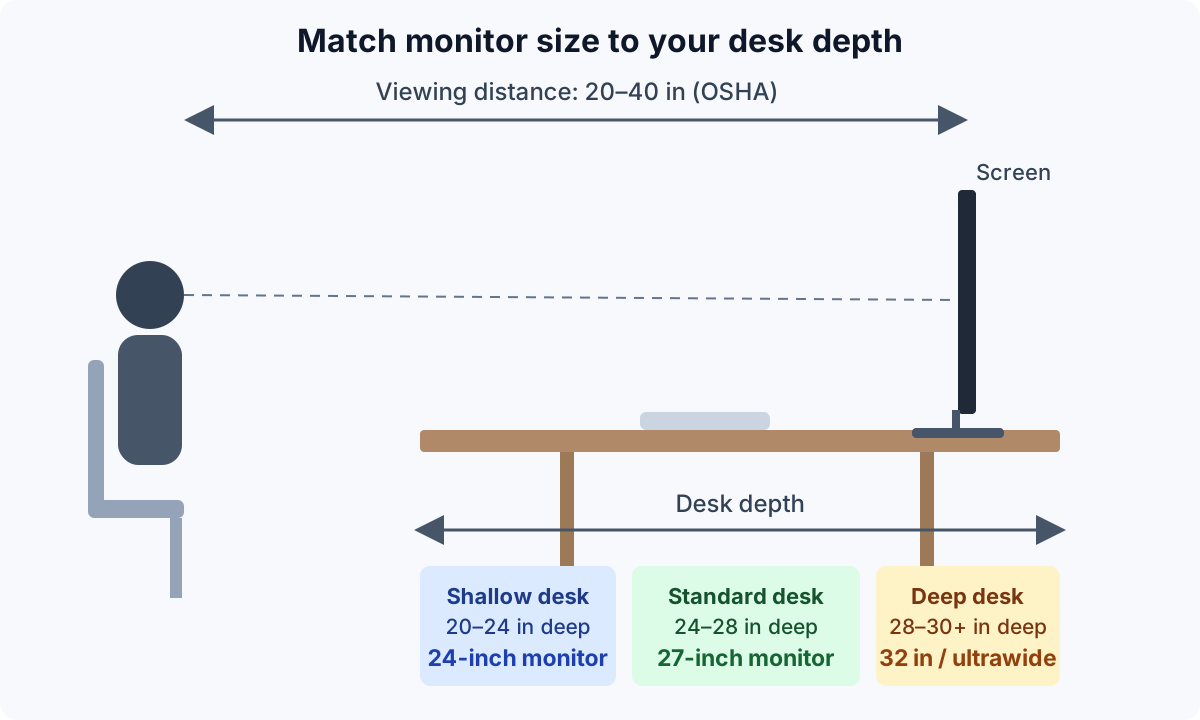
| 20–24 inches | 24-inch (16:9) | Your eyes sit roughly 18–22 inches from the panel, which is the comfortable range for a 24-inch screen |
| 24–28 inches | 27-inch, or 32-inch on a monitor arm | A 27-inch screen fills your view at arm’s length without forcing head turns |
| 28–30+ inches | 32-inch, 34-inch ultrawide, or 49-inch super-ultrawide | Deep desks give you the 30+ inches of viewing distance big panels need |
A desk’s advertised depth isn’t your viewing distance. The monitor stand eats 6–8 inches, and your keyboard needs another 4–6, so a “24-inch desk” usually gives you 18–20 inches of eye-to-screen distance. That’s why the table above looks conservative — it accounts for the parts of the desk you can’t sit inside.
How far will you sit from your screen?
Start with distance, because it sets a hard ceiling on size. OSHA’s computer workstations guidance recommends placing the screen 20–40 inches (about 50–100 cm) from your eyes — roughly arm’s length — and the Mayo Clinic’s office ergonomics guidance agrees: monitor about arm’s length away, with the top of the screen at or slightly below eye level.
The five-minute method:
- Measure your desk depth front edge to wall.
- Subtract 6–8 inches for the monitor stand and keyboard zone. That’s your real viewing distance.
- Multiply by 1.0–1.5. Your comfortable screen diagonal in inches lands in that range.
So a 24-inch-deep desk gives you about 18 inches of real distance, which maps to a 24-inch screen. A 30-inch-deep desk gives you 24 inches of distance, mapping to 24–32 inches — where a 27 or 32-inch panel fits.
| Screen size | Ideal viewing distance | Panel width |
|---|---|---|
| 24-inch (16:9) | 20–30 inches | 20.9 inches |
| 27-inch (16:9) | 24–36 inches | 23.5 inches |
| 32-inch (16:9) | 28–40 inches | 27.9 inches |
| 34-inch ultrawide (21:9) | 28–40 inches | 31.3 inches |
| 49-inch super-ultrawide (32:9) | 36–48 inches | 47.2 inches |
Quotable: A monitor that forces you to lean back or push your keyboard off the desk edge is the wrong size, no matter how good the deal was.
What size is right for the work you actually do?
Distance sets the ceiling; your daily work picks the floor.
Documents, email, and web browsing. A 24-inch 1080p panel is perfectly adequate — text is legible, and you won’t miss pixels you never had. A 27-inch 1440p is the nicer version of the same idea: same viewing distance, noticeably crisper text.
Spreadsheets, finance, and project management. Horizontal space is the currency here. A 27-inch 1440p fits two full documents side by side; a 34-inch ultrawide fits three. If your workday is columns of numbers, width beats height.
Coding. One 27-inch 1440p (or 4K) panel, or a 24-inch panel rotated to portrait for long code files. A 24-inch 1080p in portrait shows roughly 120 lines of code at readable size — one of the most-loved programmer setups we compared.
Video calls all day. 24–27 inches: on a huge screen the webcam ends up off-center and you look like you’re addressing someone’s shoulder. Camera placement beats screen inches when meetings are your job.
Design, photo, and video editing. This is where 4K earns its keep: 27–32 inches at 4K gives you the pixel density to judge fine detail. Below 27 inches, 4K’s extra pixels are mostly invisible at normal viewing distances.
On a tight budget, the sub-$200 market is full of good 24-inch 1080p monitors — our best monitors for home office under $200 guide focuses there, because a quality 24-inch beats a washed-out 27-inch every time.
Which resolution belongs on which screen size?
The classic mistake: a 27-inch 1080p shows the same pixels as a 24-inch 1080p, just stretched larger — text goes soft.
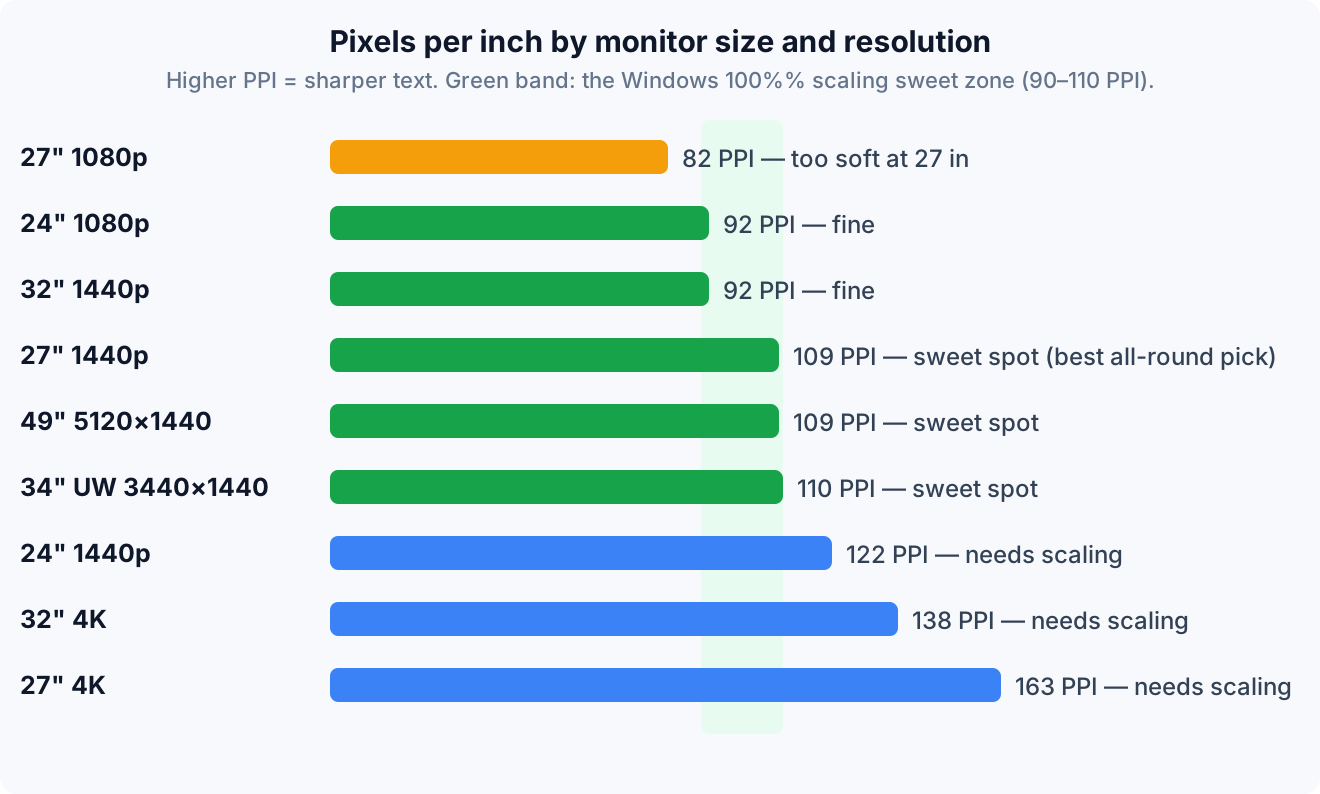
The math is pixels-per-inch (PPI): diagonal pixels divided by diagonal size. Windows is most comfortable around 90–110 PPI at 100% scaling; above ~120 PPI you’ll want scaling, which can blur older apps.
| Size and resolution | PPI | Verdict |
|---|---|---|
| 24-inch 1080p | 92 | Fine at 100% scaling — the budget sweet spot |
| 27-inch 1080p | 82 | Visibly soft — the combination to avoid |
| 32-inch 1440p | 92 | Same density as 24-inch 1080p, just bigger |
| 27-inch 1440p | 109 | The sweet spot: crisp text, no scaling needed |
| 34-inch ultrawide 1440p | 110 | Sweet-spot density in a wide body |
| 49-inch 5120×1440 | 109 | Sweet-spot density, enormous desk required |
| 24-inch 1440p | 122 | Very crisp, but needs 125% scaling |
| 32-inch 4K | 138 | Sharp for design work, needs 150% scaling |
| 27-inch 4K | 163 | Needs 150% scaling; overkill for office text |
Why 27-inch 1440p keeps winning: at 109 PPI it’s crisp without scaling, it fits a standard 24-inch-deep desk at arm’s length, and typical street prices sit at $200–$350 as of November 2026.
Quotable: A 27-inch 1440p panel and a 34-inch 1440p ultrawide have nearly identical pixel density. The difference between them is desk width, not clarity — buy width only if your desk and distance support it.
Should I get one ultrawide or two monitors?
This is the real either/or decision for most home offices, and the answer depends on how you work rather than how much you spend. A University of Utah study on multi-screen office setups found that dual and wide-screen displays improved productivity on office tasks, with the authors reporting gains of up to 44% on text-related tasks.
| Factor | One 34-inch ultrawide | Two 27-inch monitors |
|---|---|---|
| Desk width needed | ~31 inches | ~47 inches |
| Bezel in the middle | None — one continuous canvas | A seam where the two panels meet |
| Window management | Needs help (Windows Snap, PowerToys FancyZones) | Natural — one app per screen |
| Video calls | Webcam placement can feel off-center | Keep calls on one screen, work on the other |
| Task separation | Virtual desktops only | Physical separation: email left, work right |
| Typical cost as of Nov 2026 | $400–$700 | $400–$700 for two decent 27-inch 1440p panels |
| Monitor arm | One arm, standard rating | Dual arm or two singles, more desk hardware |
Pick the ultrawide for timeline-style work (video editing, wide spreadsheets, project boards), or if you hate the center bezel. Our best curved monitors for home offices guide covers the 34-inch class in detail.
Pick dual monitors for video calls and reference-heavy work, or as the cheapest path to more pixels — two 24-inch 1080p panels often cost less than one ultrawide. The step-by-step setup, including alignment and cable routing, is in our dual monitor setup guide.
Will your desk and monitor arm actually support it?
A screen that fits your eyes still has to fit your furniture:
Physical width. Panels are wider than their diagonal suggests. A 27-inch 16:9 monitor is 23.5 inches wide; a 34-inch ultrawide is 31.3 inches; a 49-inch super-ultrawide is 47.2 inches — wider than many desks. Measure your desk’s usable width and leave a few inches on each side.
Weight and VESA pattern. Most 24–27-inch office monitors weigh 8–12 pounds and use the VESA 100×100 pattern; some ultrawides use 200×100 — confirm the spec sheet before buying an arm. Match the arm’s rating to the panel: the Ergotron LX, a common reference arm, is rated for 7–25 pounds per the manufacturer’s spec, which covers nearly every 24–32-inch office monitor but deserves a check against heavy 49-inch panels. Our VESA mount explainer walks through patterns, screw sizes, and adapter plates.
On a shallow desk, a monitor arm isn’t optional: a stock stand pushes the panel 6–8 inches forward, while an arm clamps at the back edge and returns that depth — often the difference between a 24- and 27-inch screen fitting. Check that your desk has a 2–4-inch lip for the clamp, or plan for a grommet mount through a cable hole.
When is a monitor too big for a home office?
Bigger stops being better at a specific, physical point: when your neck starts doing the work your eyes should do. Keep your regular content within about 30 degrees of your center gaze — if you’re turning your head to read email, the screen is too big for your distance.
Motion discomfort. Sit too close to a large curved panel and the screen edges sweep through your peripheral vision as you work. Some owners of 49-inch super-ultrawides report motion discomfort in exactly this setup — a curved screen exaggerates the effect. The fix is distance: 36+ inches, which most home desks can’t provide.
Neck craning. A 32-inch panel on a tall stock stand can push the top edge above eye level, forcing an upward head tilt all day — lower the stand or use an arm.
Glare in small rooms. In a small room, a 32-inch glossy panel reflects the whole room; position the screen perpendicular to windows, which matters more than the coating.
Scaling friction. A 27-inch 4K panel needs 150% scaling; macOS handles it gracefully, but Windows still blurs some older apps at non-100% scaling — 1440p at 27 inches avoids the issue.
Quotable: A monitor is too big the moment it makes you move your neck to see your inbox.
Frequently asked questions
Is a 27-inch monitor too big for a desk?
No — on a standard 24-inch-deep desk at arm’s length, a 27-inch monitor fills your field of view comfortably without forcing head turns.
What size monitor is best for working from home?
A 27-inch 1440p monitor is the best all-round pick: 109 PPI keeps text crisp at 100% scaling, it fits standard desks, and street prices run $200–$350 as of November 2026.
Is a 32-inch monitor too big for office work?
Not if you sit 28–40 inches away. On a shallow desk it will feel overwhelming, but on a 28-inch-deep desk with a monitor arm it’s comfortable for spreadsheets and multitasking.
Should I get a 4K monitor for a home office?
Only at 27 inches or larger, and mainly for design, photo, or video work — for documents and email, 1440p is equally sharp in practice and avoids scaling quirks.
Can I use a TV as a monitor?
Usually a poor trade: TVs use chroma subsampling that blurs small text, their pixels are sized for 6+ feet of viewing distance, and input lag is higher than a monitor’s.
How far should I sit from a 32-inch monitor?
Aim for 28–40 inches from eyes to screen — the deeper end of OSHA’s 20–40-inch guidance — with the top of the panel at or slightly below eye level.
The 60-second decision
- Measure your desk depth, then subtract 6–8 inches for the stand and keyboard. That’s your viewing distance.
- Pick your max size from the depth table: 24 inches for shallow desks, 27 for standard, 32 or ultrawide for deep.
- Match resolution to size: 1080p at 24 inches, 1440p at 27, 4K at 32. Never 1080p at 27.
- Decide the shape: one ultrawide for timeline work, two monitors for calls and reference-heavy work.
- Check the furniture: panel width vs. desk width, weight vs. arm rating, VESA pattern on the spec sheet.
For most home offices that checklist lands on the same answer: a 27-inch 1440p monitor, on an arm if the desk is shallow, with the top of the screen at or just below eye level. It’s not the most exciting choice — it’s the one that disappears into your workday, which is exactly what a monitor should do.