
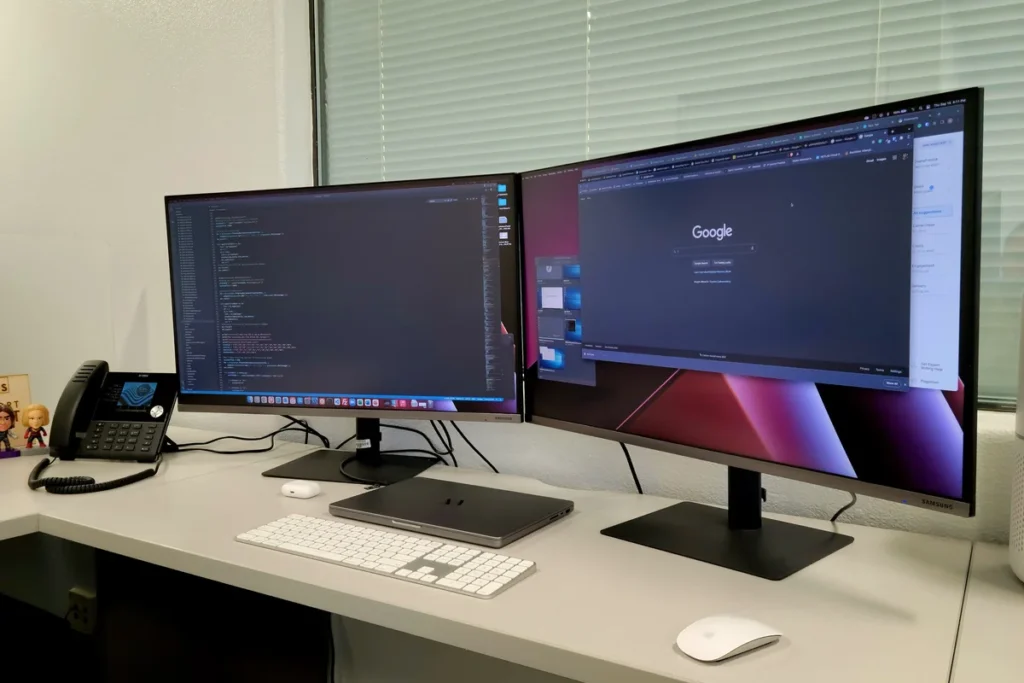
A stacked dual monitor setup places one screen directly above the other instead of side by side, and it works best when the bottom screen’s top edge sits at or just below eye level, about 20 to 26 inches from your eyes. The bottom monitor handles your main work, the top monitor holds reference material, and the whole arrangement fits on a desk as narrow as 24 inches wide.
As an Amazon Associate I earn from qualifying purchases.
Stacked (Vertical) Dual Monitor Setup: A 2026 Ergonomics Guide
The quotable rule: in a stacked setup, the bottom monitor is your desk and the top monitor is your shelf — if you catch yourself tilting your head back to read the top screen, it is mounted too high.
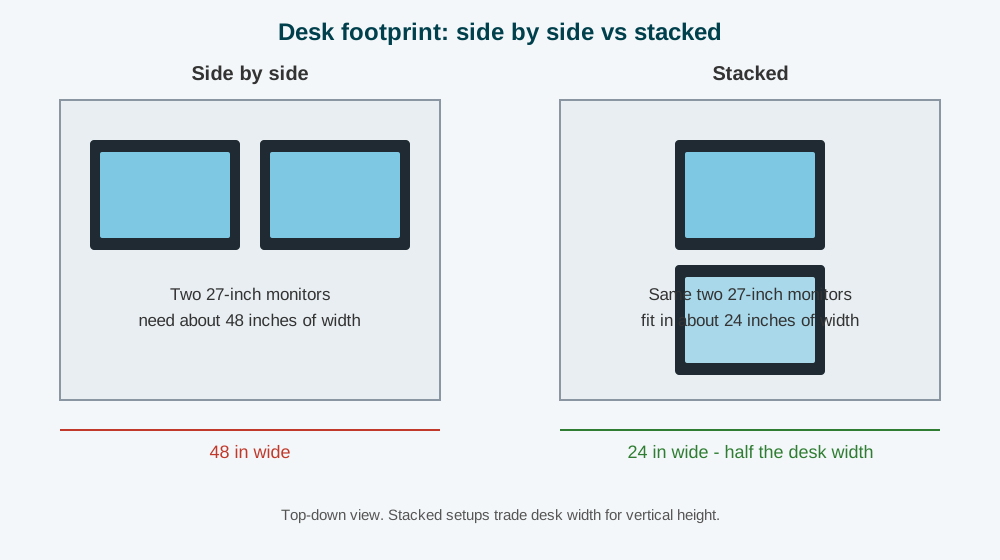
Stacking is the layout coders, traders, and writers reach for when the desk is narrow but the work needs two screens. A pair of 27-inch monitors side by side needs roughly 48 inches of desk width; stacked, the same two screens need about 24 inches. Every height and distance number below comes from published ergonomics guidance, and we compared specs, prices, and owner feedback across the common stacked mounts.
What is a stacked dual monitor setup?
A stacked dual monitor setup mounts two screens one above the other on a single tall pole, forming a vertical column instead of a horizontal row. The bottom screen sits at normal eye level and the top screen floats above it, tilted slightly downward toward you. It differs from a portrait setup, where a single screen is rotated 90 degrees — in a stacked setup both screens stay in landscape orientation. Stacked layouts suit work with a clear hierarchy — editor below, documentation above; chart below, news feed above.
Why stack monitors instead of placing them side by side?
The trade is simple: stacking saves width and costs vertical reach. Whether that trade pays off depends on your desk and your neck.
| Factor | Side by side | Stacked |
|---|---|---|
| Desk width needed (two 27-inch screens) | About 48 inches | About 24 inches |
| Neck movement | Side-to-side head turns | Small up-and-down eye glances |
| Best for | Comparing two documents equally | One primary task plus reference material |
| Worst for | Narrow desks under 40 inches wide | Work that needs both screens equally, all day |
Stacking wins outright on desks under 40 inches wide, in corners, and on small standing desks where a side-by-side pair would hang over the edges. Side by side wins when both screens carry equal weight, such as comparing spreadsheets all day. Our dual monitor setup guide covers the side-by-side arrangement, including settings that apply here too.
How high should stacked monitors be?
The U.S. Occupational Safety and Health Administration (OSHA) advises placing the top of the monitor at or slightly below eye level, with the screen about an arm’s length away. Cornell University’s ergonomics guidance recommends a viewing distance of roughly 20 to 26 inches, with a natural gaze angle of about 15 to 20 degrees below horizontal.
Applied to a stacked pair, those numbers give you a concrete setup:
- Bottom monitor: top edge at or just below eye level, so the center of the screen sits roughly 15 to 20 degrees below your horizontal line of sight.
- Top monitor: bottom edge just above the bottom monitor, tilted back 5 to 10 degrees — fine for a reference screen, but not for a primary display.
- Viewing distance: 20 to 26 inches to the bottom screen, back against the chair.
- Chair height: feet flat, eyes at the top edge of the bottom screen.
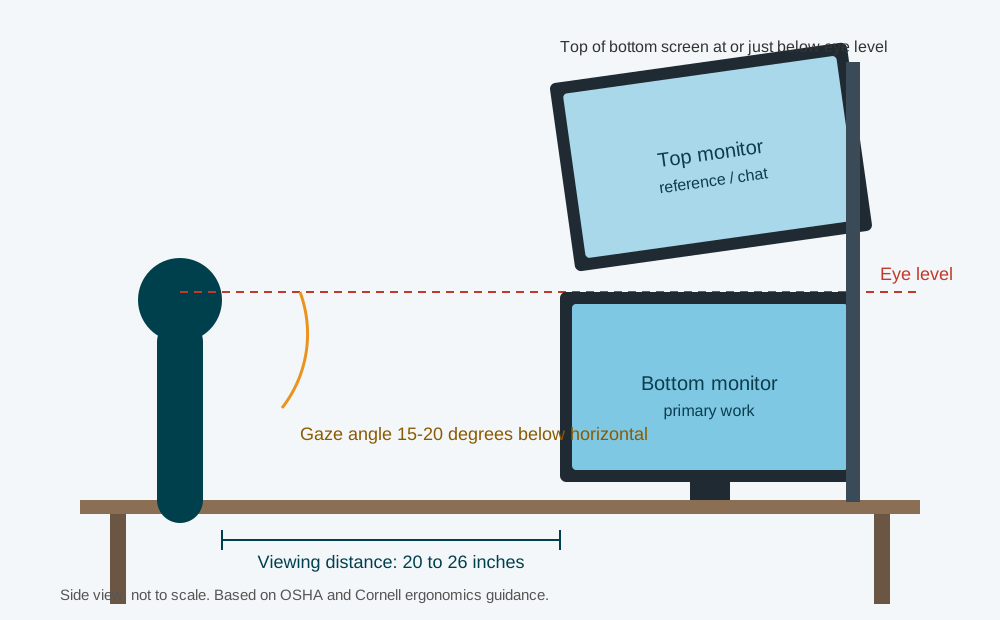
The most common mistake is mounting the column too high: if the seam sits above eye level, you will tilt your head back to check the top monitor, and that extension causes neck strain. Lower the pole until the top edge of the bottom screen is level with your eyes.
One limitation: the top screen always sits above your neutral gaze line, so a stacked setup asks more of your neck than a side-by-side pair. With an existing neck issue, keep the top screen for short glances and put long reads on the bottom screen. See our best dual monitor arm guide for more on positioning.
What size monitors work best stacked?
Two 24-inch or 27-inch monitors are the sweet spot: two 27-inch screens stacked measure about 27 to 28 inches tall including bezels, fitting under most desk shelves.
Two 32-inch monitors are possible but demanding: the stack reaches roughly 32 inches tall and needs a pole at least that high. Two 34-inch ultrawides stacked are a poor idea for most desks — the column tops 30 inches and each screen weighs 15 to 22 pounds.
Mismatched sizes work in one case: a smaller screen on top — a 27-inch primary below and a 24-inch reference above keeps the column lower. Avoid the reverse. Matching resolution matters more than size: a 1440p bottom screen with a 1080p top screen makes text jump when you drag a window across the seam.
What mount do you need for a stacked setup?
A stacked setup needs a tall pole, not a standard dual arm: stacked mounts run both VESA brackets up a single vertical column, usually 28 to 39 inches tall.
| Mount | Screens | Weight per screen | Pole height | Price, as of November 2026 |
|---|---|---|---|---|
| VIVO STAND-V002R | 13 to 34 inches | 22 lbs | About 28 inches | $39.99 (list $44.99) |
| VIVO STAND-V002T | 13 to 34 inches | 22 lbs | About 28.5 inches | Around $50 to $60 |
| VIVO STAND-V012T | 13 to 27 inches | 22 lbs | 39 inches | $59.99 |
Before buying, check three things: the VESA pattern on the back of your monitors (most stacked mounts accept 75x75mm and 100x100mm); the weight of each monitor without its factory stand (a 27-inch screen is typically 9 to 14 pounds, well under the 22-pound ratings above); and whether the mount clamps to the desk edge or uses a grommet hole — clamps need about 0.4 to 3.5 inches of desk edge.
The VIVO STAND-V002R is the value pick: it holds two screens up to 34 inches and 22 pounds each, and at $39.99 as of November 2026 it costs less than most single gas-spring arms. For 32-inch or larger monitors, the extra-tall VIVO STAND-V002T adds vertical adjustment room for roughly $10 to $20 more. Both tilt -15 to +15 degrees and swivel 180 degrees.
Freestanding stacked stands exist, but they eat the desk depth stacking is supposed to save and wobble more than a clamped pole. A clamp mount is the better default unless your desk has no usable edge.
How do you set up a stacked dual monitor layout step by step?
Plan on 30 to 45 minutes: the mount takes most of it, the software takes five.
Step 1: Measure your desk and your monitors. Confirm the desk is at least 24 inches wide at the mounting point and check each monitor’s weight without its stand and its VESA pattern.
Step 2: Clamp the pole to the desk. Clamp near the back-center of the desk, tighten firmly, then give it a quarter-turn with the included tool.
Step 3: Attach the VESA plates. Remove the factory stands, screw the VESA plates on, and slide each monitor onto the pole brackets — bottom first, then top — leaving a finger-width gap so the bezels do not press together.
Step 4: Set the heights. Sit in your chair and slide the bottom monitor until its top edge is level with your eyes, then set the top monitor just above it and tilt it down 5 to 10 degrees.
Step 5: Connect the cables. Run one video cable and one power cable per monitor, and use the pole’s cable clips to keep cords off the desk. If your laptop has only one video output, a USB-C hub with dual HDMI or DisplayPort outputs solves it.
Step 6: Arrange the displays in software. On Windows 11, open Settings, System, Display, and drag the numbered rectangles so one sits directly above the other, then set the bottom one as your main display. On macOS, open System Settings, Displays, Arrange, and drag the top display’s icon above the bottom one.
Step 7: Match scaling. Set both screens to their native resolution and the same scaling — 100 percent at 1080p, 125 percent at 1440p on a 27-inch screen — so text matches across the seam.
How do you arrange windows across stacked monitors?
Keep your main application maximized on the bottom screen and the top screen for reference material you glance at: documentation, chat, a dashboard, or a music player. On Windows, PowerToys FancyZones is the best free tool — create one large zone below and two half-width zones above, then hold Shift while dragging a window to snap it in. On macOS, Rectangle (free) or Magnet (about $8) gives you shortcuts to throw windows between screens; on a stacked pair, that moves a window up or down instead of left or right.
Coders put the editor below and the terminal above; traders put charts below and news above; writers put the draft below and research above — the screen you type on sits at eye level, and the screen you read sits above it.
What are the common mistakes with stacked monitors?
- Mounting the column too high. The top edge of the bottom screen must sit at eye level, so lower the whole pole if the seam is above your eyes.
- Making the top screen the primary display. The screen you stare at for hours should be the bottom one.
- Using a standard dual arm. Side-by-side arms cannot stack screens. Buy a mount designed for vertical stacking, with a pole tall enough for your screens.
- Ignoring the weight rating. A 34-inch ultrawide can weigh 18 to 22 pounds without its stand, so check the rating before you buy.
- Forgetting the viewing distance. Keep 20 to 26 inches to the bottom screen, per Cornell’s guidance.
- Mismatched resolutions. A 1080p screen above a 1440p screen makes windows change size as they cross the seam.
When should you choose stacked, side by side, or triple monitors?
| Your situation | Best layout |
|---|---|
| Desk under 40 inches wide | Stacked |
| One main task plus reference material | Stacked |
| Comparing two documents equally, all day | Side by side |
| Video editing with timeline plus preview | Side by side |
| Three or more live feeds (trading, monitoring) | Triple — see our triple monitor setup guide |
| Existing neck or shoulder issues | Side by side, with screens at eye level |
If you are unsure, start stacked: the mounts cost $40 to $60, the setup takes under an hour, and you can switch to side by side later with a different arm.
How much does a stacked setup cost, and when should you buy?
If you already own two monitors, a stacked setup costs $40 to $60 for the mount, plus $0 to $30 for cables. Buying monitors too? Two 27-inch 1440p IPS monitors run about $180 to $250 each as of November 2026, putting a full setup at roughly $400 to $560 including the mount.
If you are not in a hurry, Black Friday week (Nov 27–30) is when monitors and arms hit their yearly floor — our Black Friday monitor deals guide tracks the discount bands to expect. Monitors typically drop 20 to 35 percent, so waiting three weeks can save $60 to $100 on a two-monitor setup.
FAQ
Is a stacked dual monitor setup bad for your neck?
No, not when the bottom screen sits at eye level and the top screen holds only reference material. Strain comes from mounting the column too high or using the top screen as your primary display.
Can you stack two 32-inch monitors?
Yes, but you need a pole of at least 32 inches and a mount rated for each screen’s weight, and the top screen will sit well above eye level — short glances only.
Do stacked monitors work with a laptop?
Yes. Close the laptop or set it aside, connect both monitors through a USB-C dock with dual video outputs, and treat the bottom monitor as your main display.
What is the best monitor size for a stacked setup?
Two 24-inch or 27-inch monitors: the column stays under 28 inches tall and the top screen needs only a small upward glance.
Can Windows and macOS handle stacked displays?
Yes. Both let you drag the display icons into a vertical arrangement, and the mouse moves up and down between screens.
How far should you sit from stacked monitors?
Sit 20 to 26 inches from the bottom screen, back against the chair, per Cornell University ergonomics guidance.
The bottom line
A stacked setup is the right answer when desk width is the constraint and your work has a clear primary screen: bottom screen at eye level, top screen tilted down for reference material, a mount with a tall enough pole.