
How to Use Your Laptop as a Second Monitor (2026): Windows + Mac Walkthrough
Yes. Two Windows 11 laptops pair for free over Wi-Fi using the built-in Wireless Display (Miracast) feature — no app or cable needed. Mac has no free built-in option: Apple’s Sidecar is iPad-only, so a second laptop needs Duet Display or a Luna Display dongle. Every route adds input lag, so these setups suit reference work, not gaming.
Can you really use a laptop as a second monitor?
You can, with one big caveat about the connection. Laptop HDMI ports are output-only on virtually every model ever sold — an HDMI cable between two laptops carries no usable picture. Every working method runs over Wi-Fi, USB, or a network stream, which is why the optons below are either a wireless protocol (Miracast) or software.
If both laptops run Windows 11, the feature is already installed and free: Microsoft’s Miracast-based “Projecting to this PC” turns the spare laptop into a wireless receiver in about five minutes. Mixed setups (Windows + Mac, or two Macs) need apps or a hardware dongle — there is no free, built-in Apple feature that turns one laptop into another laptop’s display.
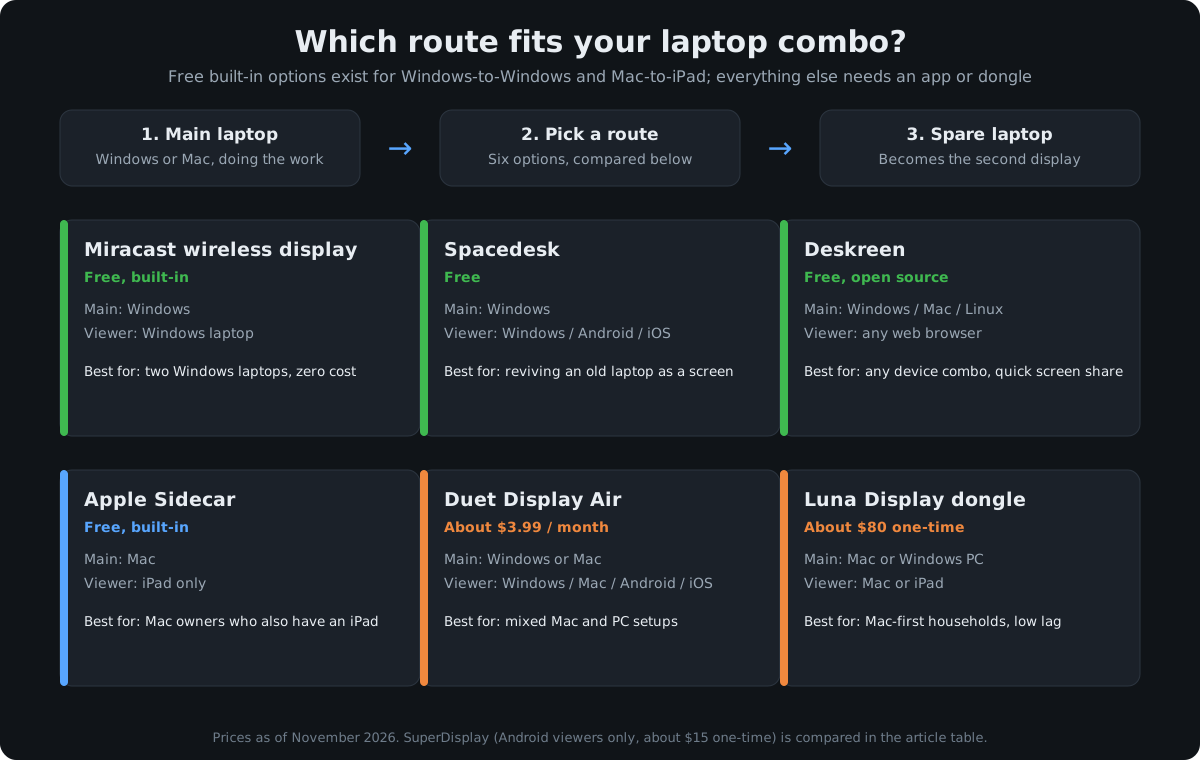
The quotable version: a spare laptop is a free wireless monitor for a Windows PC, a paid app away for a Mac, and an HDMI cable will never do the job.
How do you use a laptop as a second monitor on Windows 11?
Two Windows 11 laptops, one as the main machine and one as the display. Menu paths verified against Windows 11 as of November 2026:
On the spare laptop (the one becoming the monitor):
- Open Settings → System → Projecting to this PC.
- If you see a prompt about the Wireless Display optional feature, install it first: Settings → System → Optional features → View features, search “Wireless Display”, check it, and install. This takes a minute or two.
- Set “Some Windows and Android devices can project to this PC when you say it’s OK” to Available everywhere on secure networks.
- Optionally set “Require PIN for pairing” to Never for a home setup, or keep it on for security in shared spaces.
- Leave this Settings page open — the laptop is now discoverable.
On the main laptop (the one doing the work):
- Press Win + K to open the Cast panel (or go to Settings → System → Display → Multiple displays → Connect to a wireless display).
- Select the spare laptop from the device list.
- Accept the connection on the spare laptop and enter the PIN if prompted.
- Press Win + P and choose Extend — not Duplicate. Now drag a window off the edge of your main screen and it appears on the spare laptop.
Tune it: open Settings → System → Display and drag the numbered rectangles so the arrangement matches your physical desk. Our dual-monitor setup guide walks through arrangement and scaling in more depth.
Miracast runs over Wi-Fi Direct, so no internet is required — and owner feedback consistently rates it close to a real monitor for documents, email, and chat.
What about Mac? Can a MacBook work as a second display?
The honest short version: no built-in Apple feature turns one MacBook into another Mac’s display. Sidecar is iPad-only — it pairs a Mac with an iPad, never with another laptop. We compared the workarounds, and Mac users have three realistic options:
- Luna Display dongle (about $80, one-time). A small USB-C or HDMI dongle from Astropad that plugs into the main computer; the spare Mac or iPad runs the free Luna app and becomes a true extended display over Wi-Fi or USB. It supports Mac-to-Mac, PC-to-Mac, and Mac-to-iPad modes with 4K/5K support on newer setups, and its latency is among the lowest of any option here.
- Duet Display Air (about $3.99/month, billed annually). From ex-Apple engineers; works with Windows and Mac sources and Windows, Mac, iOS, and Android viewers. The cheaper $2.99/month Starter tier is wired-only and does not cover every laptop-as-viewer combo, so check the tier before subscribing.
- AirPlay to Mac (free, but limited). A Mac can receive an AirPlay stream from another Mac — but AirPlay only mirrors, it cannot extend the desktop. Fine for presentations, useless for gaining screen space.
If you are a Mac household with a spare MacBook, budget for the dongle or the subscription — or keep an eye out for a used iPad, which unlocks the free Sidecar route.
Which app should you use? Duet vs Spacedesk vs SuperDisplay vs Deskreen
If the built-in routes do not fit your combo — say your main machine is a Mac, or you want to revive a very old laptop — these four apps cover the field. The table below is self-contained: every cell stands alone.
| App | Price (as of Nov 2026) | Main computer (source) | Spare device (viewer) | Connection | Honest limitation |
|---|---|---|---|---|---|
| Spacedesk | Free | Windows only | Windows, Android, iOS | Wi-Fi or USB | Source must be a Windows PC — useless if your main machine is a Mac. The current free release is dated to expire Dec 31, 2026; the developer has historically re-released a free version each year. |
| Duet Display (Air) | ~$3.99/mo, billed annually; 7-day free trial | Windows or Mac | Windows, Mac, iOS, Android | USB (wired) or Wi-Fi | A subscription for occasional use adds up; the cheaper Starter tier does not support laptop-as-viewer on all combos. |
| SuperDisplay | ~$15 one-time (Google Play); free trial | Windows 10/11 | Android only | USB (best) or Wi-Fi | The viewer is Android-only — great for a spare tablet or phone, but it cannot turn a laptop into the display. |
| Deskreen | Free, open source | Windows, Mac, Linux | Any device with a web browser | Local network (QR code or URL) | Highest lag of the four; true “extend desktop” mode works best with a cheap HDMI dummy plug (~$5–$10) so the OS sees a monitor. |
The pattern from our comparison of published specs and owner feedback: Spacedesk is the default free pick for Windows users, Duet Display is the default paid pick for Mac users (the only app here that handles every source/viewer combo), and Deskreen is the fastest way to test the concept — nothing installs on the viewer — at the cost of the most noticeable lag. Wired USB beats Wi-Fi for responsiveness in every app that offers both.
How bad is the input lag, really?
This is the question that decides whether the setup is delightful or maddening. Every software route adds delay between moving your mouse and seeing the cursor move, because the image is compressed, transmitted, and decoded in real time. The chart below summarizes the typical ranges reported by users and reviewers as of November 2026.
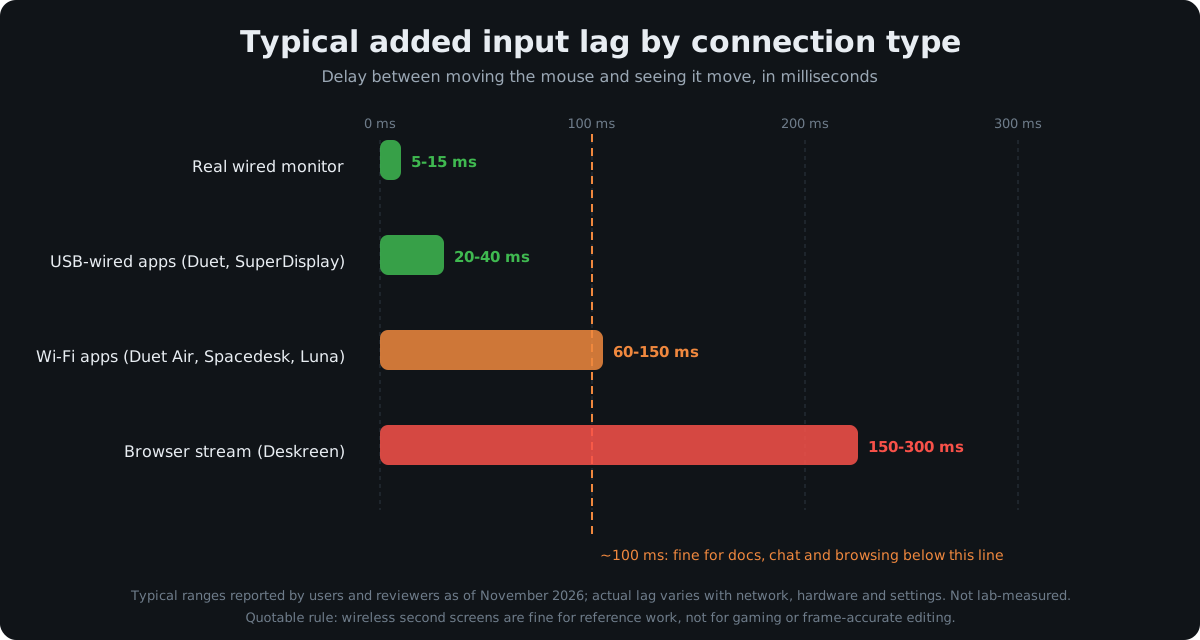
The rule of thumb: anything under ~100 ms is fine for reference work — docs, Slack, email, video calls, dashboards. Above that, gaming, video editing, and precise design work start to feel wrong. USB-wired apps land in the 20–40 ms band, which most people stop noticing after a few minutes. Wi-Fi apps sit at 60–150 ms — usable for a chat window or reference PDF, visibly soft for scrolling-heavy work. Browser-based Deskreen, at 150–300 ms, is a “glance at a dashboard” tool, not a working display.
Two levers cut lag more than anything else: use a cable when the app supports it, and put both devices on 5 GHz Wi-Fi when it does not. Wired always wins.
How do you dial in resolution and display settings?
A laptop-as-monitor setup inherits a resolution mismatch between the two panels. Five minutes of tuning fixes most complaints:
- Set the viewer to its native resolution, then adjust scaling. On the main PC, set the wireless display to the spare laptop’s native resolution (often 1920×1080 or 2560×1600); if text looks tiny, raise scaling to 125% or 150% on that display only.
- Lower the resolution to cut lag on Wi-Fi. Dropping the second display to 1080p softens the image slightly but smooths frame delivery dramatically — a worthwhile trade on congested networks.
- Match the arrangement to your desk. Drag the display rectangles in Display settings so the second screen sits where the spare laptop physically is — a mismatched layout is the #1 source of “my cursor keeps disappearing.”
- Plug both laptops into power. Screen-sharing keeps both machines’ GPUs and radios busy; the spare laptop drains noticeably faster acting as a display.
- Turn on Night Light / Night Shift on both. Two mismatched color temperatures side by side cause more eye fatigue than either screen alone.
Going beyond two screens? Our triple-monitor setup guide covers the wiring and GPU math.
What usually goes wrong? (troubleshooting checklist)
- The spare laptop does not appear in the Win + K list. Both machines must be on the same Wi-Fi network. On the receiver, confirm the Wireless Display optional feature is installed and “Projecting to this PC” is available.
- It connects, then immediately drops. Disable battery saver on the viewer — on Android, Spacedesk needs the app exempted from battery optimization (“No restrictions”). Keep both laptops plugged in.
- Windows Firewall blocks the app. Spacedesk and Deskreen need a firewall exception on first launch; if you dismissed the prompt, re-allow them in Windows Security → Firewall → Allow an app.
- The second screen duplicates instead of extending. Press Win + P and select Extend — several apps default to mirror mode on first connect.
- Everything is laggy over Wi-Fi. Use a USB connection if the app supports one, move both devices to the 5 GHz band, or drop the viewer resolution to 1080p.
- Text is blurry on the spare laptop. Set the second display to its exact native resolution — mismatched resolutions are the usual cause — and check per-display scaling.
- Deskreen shows a black screen in “extend” mode. The OS must believe a monitor exists: plug a cheap HDMI dummy plug (under $10) into the main PC so it exposes a virtual display for Deskreen to share.
When should you just buy a real second monitor instead?
This trick is a workaround with a ceiling. Buy a dedicated second monitor when any of these is true: you use the second screen every workday (setup friction compounds), you do gaming, video editing, or color-critical design (lag and compression are disqualifiers), or you fight disconnects and scaling quirks weekly.
For travel, a dedicated portable monitor (typically $100–$150 for a 15.6-inch 1080p USB-C panel) is thinner, lighter, and lag-free next to a second laptop — our portable monitor guide compares the current options. And timing matters if the budget is tight: monitors hit their yearly price floor during sale season. If you are not in a hurry, Black Friday week (Nov 27–30) is when monitor prices drop hardest — our Black Friday home office deals guide tracks the discount bands to expect.
The decision in one sentence: use the spare laptop if the need is temporary or the budget is zero; buy the monitor if the second screen is part of your daily workflow.
FAQ: using a laptop as a second monitor
Can I connect two laptops with an HDMI cable to use one as a monitor?
No. Laptop HDMI ports are output-only on virtually every model — the connection must be wireless (Miracast), over USB via an app, or a network stream.
Can a MacBook be used as a second monitor for a Windows PC?
Yes, but only with paid help: Duet Display’s Air tier ($3.99/month) or a Luna Display dongle (about $80) both support PC-to-Mac extended display. There is no free built-in option for this combo — Apple’s Sidecar is iPad-only and AirPlay to Mac only mirrors.
Will using my laptop as a monitor slow down my main laptop?
Slightly. Display apps add modest CPU and network load to the main machine, and the spare laptop runs warm acting as a display. For office work the impact is negligible; for heavy gaming or rendering, close the second display first.
Is there a completely free way to do this?
Yes. Two Windows 11 laptops connect free via the built-in Wireless Display (Miracast) feature — Win + K, no app needed. Spacedesk is free for Windows-source setups, and Deskreen is free and open source for any source OS with any browser as the viewer.
Why can’t I use Sidecar with another MacBook instead of an iPad?
Because Apple limits Sidecar to iPad viewers only — it pairs a Mac with an iPad, never with another laptop. For Mac-to-MacBook extended display, Luna Display’s Mac-to-Mac mode or Duet Display are the working alternatives.
The bottom line
Start free: two Windows laptops pair over Miracast in minutes, and a Mac plus iPad gets Sidecar. Beyond that, Spacedesk covers Windows sources, Duet Display covers every combo for a few dollars a month, and the Luna dongle feels closest to a real monitor. If the spare laptop earns a permanent desk spot, that is the signal to invest in a real second screen.