
How to Look Better on Video Calls (Home Office Guide)
You look better on video calls when three things are right: soft light on your face, a camera at eye level, and a clean background behind you. Fix the lighting first — it matters more than the camera — then raise the camera, frame yourself head-and-shoulders, and check your background before every call.
As an Amazon Associate I earn from qualifying purchases.
Quick wins for your very next call: Face a window or put a lamp behind your laptop screen. Stack books under the laptop until the camera is level with your eyes. Sit about an arm’s length away, head and shoulders in frame. Turn off the ceiling light behind you, and tidy the three feet of wall the camera sees.
Why do you look bad on video calls?
Most people blame their webcam, but the camera is usually the smallest problem. Four things decide how you look on a call, in order of impact: light, camera angle, framing, and background. Get those right and even a basic laptop webcam looks fine. Get them wrong and a $200 camera will not save you.
- Bad light is the number-one culprit. A window or ceiling light behind you turns your face into a dark silhouette. Overhead light carves shadows under your eyes and brow. Dim light forces the camera to crank up its sensor gain, which adds grain and washes out your skin tone.
- A low camera angle is the second. A laptop flat on a desk shoots up at your chin and nostrils — the least flattering angle there is. It also makes you look like you are looming over the viewer.
- Framing too far or too close. Three feet back makes you a small figure in a big room; six inches from the lens fills the frame with your forehead. The sweet spot is head and shoulders, with a little space above your head.
- A messy background. Your colleagues’ eyes drift to the unmade bed or the glare of a window behind you. A distracting background makes you look disorganized even when you are not.
The good news: three of the four are free to fix. Start there before spending anything.
How should you light your face for video calls?
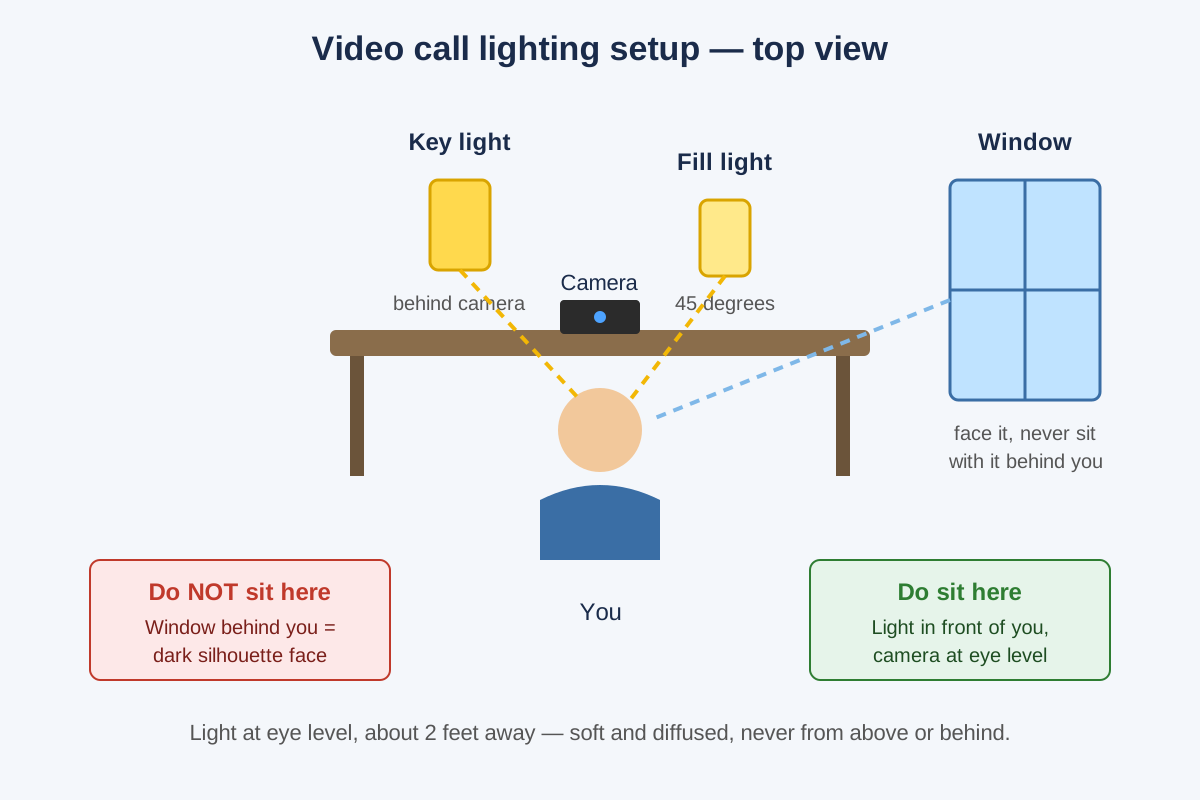
Light should hit your face from the front, at roughly eye level, and it should be soft — diffused, not a bare bulb. The classic setup is one main light (the “key”) just behind your camera aimed at your face, plus a weaker second light on the other side to soften shadows. A window and a desk lamp can do the job.
- Face the window. Sit facing the nearest window, with your laptop between you and the glass. Daylight is the best video-call light there is: bright, soft, and the right color. Morning light is ideal; harsh midday sun needs a sheer curtain as a diffuser.
- Never sit with a window behind you. Backlighting is the most common video-call mistake. Your camera exposes for the bright window and your face goes black. If your desk faces away from the window, turn the desk around.
- Put the light behind the camera, not above you. A lamp on the desk behind your laptop, aimed at your face, works surprisingly well. It should sit at or slightly above eye level, about two feet away. A ceiling light directly overhead is the worst option: it lights the top of your head and leaves your eye sockets in shadow.
- Match the color temperature. Daylight is around 5500K; a warm living-room bulb is around 2700K and turns your skin orange on camera. Buy a light with adjustable color temperature so you can match the room.
If you are buying a light, there are two shapes to choose from. A ring light puts a circle of LEDs around your camera and gives you the even, shadow-free look you see on social media — flattering, but it can leave a visible ring reflection in your glasses. The Neewer 18-Inch Ring Light (55W, 5500K, 240 LEDs) is the budget standard at about $89 as of October 2026, and it comes with a tripod stand and phone holder. A panel light is the more professional option: a flat, edge-lit rectangle that throws soft, even light across your face without the ring reflection. The Elgato Key Light is the reference panel — 2,800 lumens, 2900–7000K, app-controlled brightness, desk clamp — typically $179–$200 as of October 2026. Either one beats a ceiling light by a mile.
Where should the camera go?
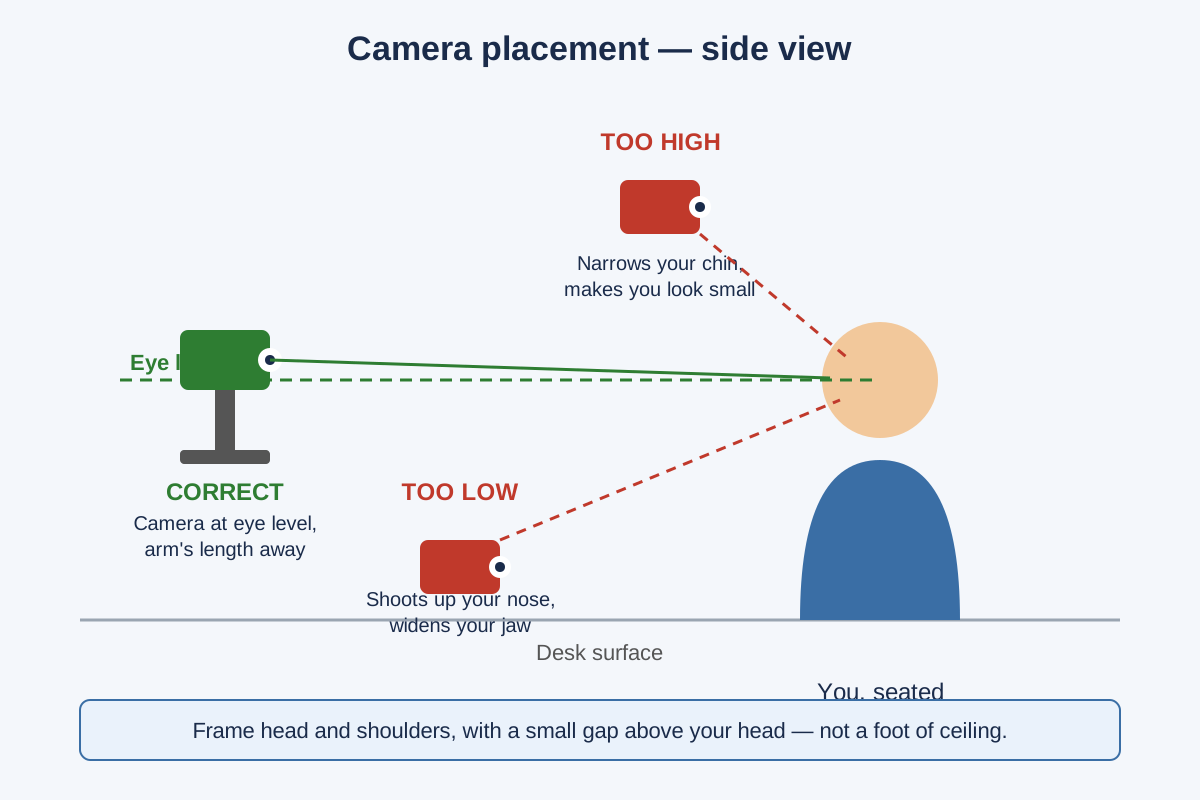
The camera should sit at eye level, or at most a couple of inches above it, and about an arm’s length away. That is the angle people see when they talk to you in person — the angle your brain reads as normal and trustworthy. Below eye level, the lens looks up your nose and widens your jaw; above eye level, it narrows your chin and makes you look small.
- Raise the laptop. The fastest fix is a stack of books or a laptop stand under the machine until the camera lens is level with your eyes. A dedicated stand costs $25–$40 and also improves your posture, but books work today.
- Use a separate webcam on a tripod. A standalone camera on a small tripod or clipped to the top of your monitor puts the lens exactly where you want it, independent of the screen. It also lets you keep the laptop at a comfortable typing height.
- Look at the lens, not the screen. When you are speaking, glance at the camera lens, not at the other person’s face on screen. It feels unnatural at first, but to everyone else it reads as eye contact. Shrink the meeting window and drag it to the top of your screen, right under the camera, so your gaze barely moves.
- Check your framing with the self-view. Before the meeting, open your self-view: your head and shoulders should fill most of the frame, with a small gap above your head, and the camera should not cut off the top of your head.
Do you need a better webcam?
A better webcam helps, but only after the light and angle are fixed. A good camera in bad light still looks bad, while a mediocre camera in good light looks professional. If your lighting and angle are sorted and your image is still soft, grainy, or washed out, the camera is the bottleneck.
| Webcam | Resolution | Autofocus | Price (as of Oct 2026) | Best for |
|---|---|---|---|---|
| Built-in laptop webcam | 720p | No | $0 | Occasional calls in good light |
| Logitech C920 HD Pro | 1080p/30fps | Yes | ~$60–$70 | Everyday work calls on a budget |
| Logitech Brio 4K | 4K/30fps, 1080p/60fps | Yes | ~$120–$150 | Frequent calls, streaming, low light |
The Logitech C920 HD Pro is the value pick: true 1080p, autofocus, a 78-degree field of view that frames one person well, and a glass lens that stays sharp — typically $60–$70 as of October 2026, and the default work-from-home webcam for a decade. The Logitech Brio 4K is the step up: 4K with 5x digital zoom, RightLight 3 HDR that handles mixed lighting far better, dual noise-canceling mics, and three field-of-view presets (65°/78°/90°) — typically $120–$150 as of October 2026 against a $199.99 list price. Our best webcam for home office video calls guide compares these and a few more in detail, including which ones handle low light best.
Two camera settings matter more than the brand. Turn off any “beauty” filter your meeting app applies — Zoom’s “Touch Up My Appearance” softens detail and makes you look slightly out of focus. And if your webcam software offers manual exposure, lock it to your face rather than letting it hunt every time you move.
What should be behind you on camera?
Your background is the second thing people notice after your face. The goal is a background that looks intentional and does not compete with you for attention. You need about three feet of wall behind your chair to work with.
- Depth beats decoration. A wall six feet behind you with a plant or a bookshelf looks far better than a wall two feet behind you: the camera blurs distant objects slightly and separates you from the background. Pull your chair forward and let the background breathe.
- One or two objects, not ten. A single plant, a bookshelf, or a framed print gives the eye somewhere to rest. A cluttered shelf full of boxes, cables, and papers does the opposite — every object is a distraction competing with your face.
- Hide the bed and the kitchen. If your desk is in a bedroom, angle the camera so the bed is out of frame. In a shared living space, a folding screen or a tall plant can block the busy part of the room.
Our best video call backdrop guide covers physical backdrops, room dividers, and the cheapest ways to stage the wall behind you. If echo is also a problem, the same wall is the right place for acoustic treatment — see our best acoustic panels for a home office guide for panels that double as a backdrop.
How can you look better on video calls without buying anything?
Most of the improvement is free. Before you buy a webcam or a light, run through this list — it takes about 20 minutes and covers the fixes that make the biggest visible difference.
1. Clean the lens. A quick wipe with a microfiber cloth sharpens the image instantly — the most overlooked fix of all.
2. Turn your desk to face the window. This one change can be worth more than a $100 camera. Daylight from the front is flattering, free, and already in your room.
3. Raise the camera to eye level. Books, a shoebox, a laptop stand — anything that gets the lens out of your lap and level with your eyes.
4. Close the curtains behind you. If a bright window sits behind you, close the blinds so the camera stops exposing for the window instead of your face.
5. Wear a solid color. Busy patterns and thin stripes shimmer on video compression. A solid shirt that contrasts with your background keeps the focus on your face.
6. Sit up and lean in slightly. Sitting upright and leaning a few inches toward the camera makes you look engaged and energetic; slouching back makes you look checked out.
How much does a professional-looking video call setup cost?
You can look noticeably better for $0 and professionally polished for under $200. The table ranks the upgrades by visible impact per dollar, prices as of October 2026.
| Upgrade | Cost (as of Oct 2026) | What it fixes | Impact |
|---|---|---|---|
| Face the window + raise the laptop | $0 | Lighting, angle | High |
| Logitech C920 webcam | ~$60–$70 | Resolution, autofocus | High |
| Neewer 18″ ring light | ~$89 | Even, flattering light | High |
| Logitech Brio 4K webcam | ~$120–$150 | Resolution, low light, HDR | Medium–High |
| Elgato Key Light panel | ~$179–$200 | Professional, adjustable light | High |
The pattern is clear: the first row is free and delivers most of the result. If you buy one thing, make it light — a $89 ring light or a $200 panel changes how you look more than any camera upgrade at the same price. If you are not in a hurry, Black Friday week (Nov 27–30) is when webcams and lights hit their yearly floor — our Black Friday video-call gear deals guide tracks the discount bands to expect.
What is your pre-call checklist?
Run this 60-second check before every important call: light on the front of your face with no bright window behind you; camera at eye level, an arm’s length away, head and shoulders in frame; background tidy, with nothing moving or glowing in it; camera lens clean; headset connected and mic unmuted, with a 5-second test recording; phone silenced and any app that might pop up on a shared screen closed. One more thing worth doing: turn on noise suppression in your meeting app and record a 30-second test clip before the big call — if you can hear the room, so can everyone else. Six checks, sixty seconds — and you will look and sound like the most prepared person on the call.
How to look better on video calls — FAQ
What is the fastest way to look better on video calls? Face a window and raise your camera to eye level — those two free changes fix the lighting and angle problems behind most bad-looking calls.
Do I need a ring light for video calls? No — a window or a desk lamp behind your camera gives you the same soft front light for free, though a ring light like the Neewer 18-inch is the easiest consistent option at about $89.
Should the camera be at eye level for video calls? Yes — a camera at eye level, about an arm’s length away, is the most natural and flattering angle, while a low camera shoots up your nose and a high one makes you look small.
Is a 4K webcam worth it for video calls? Usually not — most meeting apps compress video to 720p or 1080p anyway, so a good 1080p webcam like the Logitech C920 in good light looks nearly identical to a 4K one on the other end.
Does a virtual background make you look worse? Often yes — virtual backgrounds glitch around hair and hands and look artificial, while a tidy real background or a simple blur looks more professional.