
Best Webcams for Home Office Video Calls (2026)
The best webcam for home office video calls is the Logitech C920s (~$70 as of October 2026) — it pairs true 1080p video with reliable autofocus, a natural 78° field of view, and a physical privacy shutter at a price almost anyone can justify. If you want sharper 2K footage for the same money, the Anker PowerConf C200 is the value pick; for AI auto-framing and 60 fps, step up to the Anker PowerConf C300.
As an Amazon Associate I earn from qualifying purchases.
Our picks at a glance
- Logitech C920s (~$70) — Best overall for Zoom and Teams calls. True 1080p at 30 fps, fast autofocus, 78° FOV, privacy shutter.
- Anker PowerConf C200 ($69.99) — Best 2K value. Sharper 2560×1440 video, adjustable 65°/78°/95° FOV, AI noise-canceling dual mics, built-in privacy cover.
- Anker PowerConf C300 (~$130) — Best smart features. 1080p at 60 fps, AI auto-framing that follows you, adjustable FOV up to 115°, HDR.
- Logitech Brio 100 (~$25–$36) — Best budget webcam. 1080p at 30 fps, auto-light correction, integrated privacy shutter, 58° FOV for a tight, flattering frame.
- NexiGo N60 ($24.99) — Best budget with autofocus. 1080p at 30 fps, autofocus (rare at this price), wide-angle lens, software control, privacy cover.
The 5 best webcams, compared
| Webcam | Resolution & frame rate | Field of view | Focus | Microphone | Price (Oct 2026) | Best for |
|---|---|---|---|---|---|---|
| Logitech C920s | 1080p @ 30 fps | 78° | Autofocus | Stereo dual mic | ~$70 | Most home-office callers |
| Anker PowerConf C200 | 2K (1440p) @ 30 fps | 65° / 78° / 95° (software) | Autofocus | Dual mic + AI noise cancellation | $69.99 | Sharper image on a budget |
| Anker PowerConf C300 | 1080p @ 60 fps | 78° / 90° / 115° (software) | AI-powered autofocus | Dual mic + AI noise cancellation | ~$130 | Presenters who move while talking |
| Logitech Brio 100 | 1080p @ 30 fps | 58° | Fixed focus | Built-in omnidirectional mic | ~$25–$36 | Tight budget, laptop calls |
| NexiGo N60 | 1080p @ 30 fps | Wide-angle lens | Autofocus | Built-in mic + AI noise reduction | $24.99 | Budget calls with autofocus |
What actually makes a webcam look professional on video calls?
Four specs decide whether you look crisp or washed-out on Zoom and Teams:
- Resolution. 1080p is the sweet spot — Zoom and Teams rarely deliver more than 1080p in a live call. 2K looks noticeably sharper in your own preview and recordings.
- Autofocus. Keeps your face sharp when you lean in or sit back. Fixed-focus cameras (like the Brio 100) stay sharp within a working range of roughly 2–8 feet, so position yourself inside it.
- Low-light performance. Larger apertures and auto light correction matter more than raw resolution in a dim room. No webcam fixes a dark room — pair any pick with decent front lighting.
- Field of view (FOV). 58° frames head and shoulders only; 78° suits a solo caller with some background; 90°+ fits two people or a full desk setup.
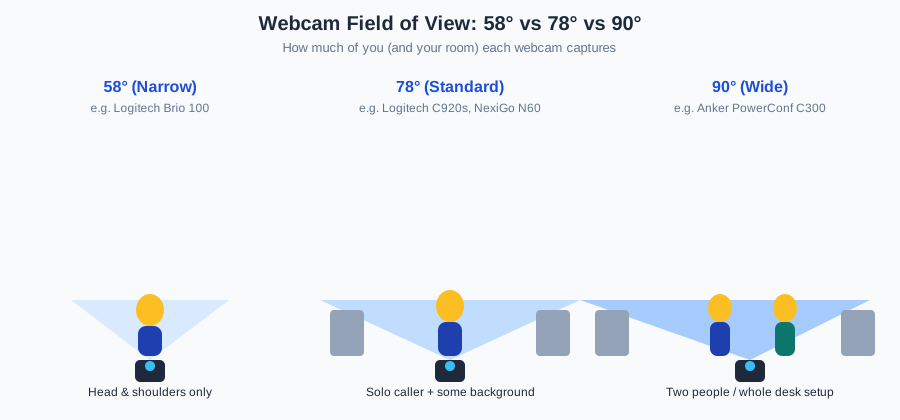
1. Logitech C920s — Best overall webcam for video calls
The C920s has been the default recommendation for remote workers for years, and the reasons hold up in 2026. It captures true 1080p at 30 fps through a glass lens with fast autofocus, so your face stays sharp whether you lean into the camera to read a shared screen or sit back to grab coffee. The 78° diagonal field of view frames one person naturally — close enough to feel present, wide enough that you don’t have to sit unnaturally still.
The dual stereo microphones are clear enough for daily standups without a headset, and the attachable privacy shutter is the kind of feature you don’t think about until the one day you need it. Logitech’s HD light correction handles mixed office lighting well, and at ~$70 as of October 2026, it undercuts every 2K competitor by enough to matter.
The compromises are modest: 30 fps (not 60), so hand gestures have slight motion blur, and low-light footage gets grainy past a point — though no 1080p webcam is immune to that. For the core job of looking professional on back-to-back calls, this is the one to beat.
Specs: 1080p/30 fps · 78° FOV · autofocus · glass lens · stereo dual mic · 1.5 m cable · Windows/macOS/ChromeOS/Android.
Check the Logitech C920s on Amazon
2. Anker PowerConf C200 — Best 2K webcam value
If your calls get recorded, or you just want the sharpest picture under $70, the PowerConf C200 steps up to 2K (2560×1440) resolution. In side-by-side tests, the extra pixels show in facial detail and text legibility — your colleagues will read the sticky notes behind you, for better or worse.
Anker’s adjustable FOV is the standout feature: pick 65° for a tight solo frame, 78° for standard calls, or 95° when you want the room in shot. The f/2.0-ish wide aperture (Anker advertises a “light-absorbing” large-aperture lens) keeps you visible in dim rooms better than most 1080p rivals, and the dual mics with AI noise cancellation cut keyboard clatter convincingly.
The built-in sliding privacy cover sits flush in the body, so there’s nothing to lose. The tradeoffs: it ships at 30 fps, the AnkerWork tuning software is Windows/Mac only (Linux and ChromeOS users get plug-and-play basics), and some reviewers note the autofocus hunts in very low light. At $69.99 on Amazon as of October 2026 — the same price as the 1080p C920s — the 2K upgrade is essentially free.
Specs: 2K (1440p)/30 fps · 65°/78°/95° adjustable FOV · autofocus · dual mic with AI noise cancellation · USB-C · Windows/macOS.
Check the Anker PowerConf C200 on Amazon
3. Anker PowerConf C300 — Best webcam for presenters and movers
The C300 trades raw resolution for intelligence. It records 1080p at 60 fps — the smoothest motion on this list — and layers on AI-powered framing that pans and zooms to keep you centered as you move, plus AI autofocus and low-light correction. If you stand up to whiteboard, pace while presenting, or demo products on camera, this is the behavior you want.
The FOV adjusts across 78°, 90°, and 115° in the AnkerWork app, and the privacy cover comes in the box. Zoom certification matters if your employer standardizes on Zoom, and HDR helps when a window sits behind you.
The price is the question: at ~$130 as of October 2026, it costs roughly double the C200 for smoother motion and smarter tracking rather than more pixels. For back-to-back seated meetings, the difference is subtle; for anyone who presents on camera, it’s worth it. Note that AI framing crops the sensor, so the “zoomed” view is slightly softer than the full frame.
Specs: 1080p/60 fps · 78°/90°/115° adjustable FOV · AI autofocus + AI framing · dual mic with AI noise cancellation · HDR · Zoom certified · privacy cover.
Check the Anker PowerConf C300 on Amazon
4. Logitech Brio 100 — Best budget webcam
At around $25–$36 as of October 2026, the Brio 100 is the cheapest way to stop looking like a blurry thumbnail. It delivers genuine 1080p at 30 fps with Logitech’s RightLight auto light correction, which the company says boosts brightness up to 50% versus its previous-generation webcams — a real difference in a room lit only by a monitor.
The 58° field of view is narrower than everything else here, and that’s a feature, not a bug: it crops out your messy bookshelf and keeps the frame on your face. The integrated sliding privacy shutter and plug-and-play USB-A connection (no software required) make it the simplest pick on the list. It comes in graphite, off-white, and rose, with at least 34% recycled plastic in the housing.
Know the limits: fixed focus means you must sit in its sharp zone (roughly arm’s length to 8 feet), and the single omnidirectional mic picks up room noise. But for laptop calls in a quiet room, it punches far above its price.
Specs: 1080p/30 fps · 58° FOV · fixed focus · built-in omnidirectional mic · auto light correction · integrated privacy shutter · USB-A · Windows/macOS/ChromeOS.
Check the Logitech Brio 100 on Amazon
5. NexiGo N60 — Best budget pick with autofocus
The NexiGo N60 solves the Brio 100’s biggest limitation at a similar price: autofocus. At $24.99 on Amazon as of October 2026, it’s the cheapest webcam here with true autofocus, so you can lean in, sit back, or hand the camera to a colleague without going soft.
The 1080p/30 fps picture is solid for the money, with auto exposure and white balance that hold up across lighting changes, and the wide-angle lens fits more of the room in frame than the Brio 100’s tight 58°. NexiGo’s free software unlocks brightness, contrast, and sharpness controls the others charge nothing for either, plus a privacy cover is in the box.
The catch with any sub-$30 webcam brand is long-term support and consistency — NexiGo has sold the N60 line since 2020 with strong review volume, which is about as much reassurance as this price tier offers. If your budget is strictly minimal and you want autofocus, this beats every laptop camera by a wide margin.
Specs: 1080p/30 fps · wide-angle lens · autofocus · built-in mic with AI noise reduction · software control · privacy cover · USB · Windows/macOS.
Check the NexiGo N60 on Amazon
Premium alternative: Dell Pro Webcam WB5023
If your employer will pay, the Dell Pro Webcam WB5023 remains the premium business pick: 2K QHD (2560×1440) at 30 fps, a large Sony STARVIS sensor, DOL-HDR, AI auto-framing, 65°/78° field of view, and Teams + Zoom certification, launched at $135. It’s overkill for most home offices, but the low-light performance is genuinely a class above the consumer picks. (No corroborated Amazon ASIN at research time, so no affiliate link — check Dell’s store directly.)
How to position your webcam so you look professional
The camera matters less than where you put it. One sentence to remember: eye level beats everything.
Mount the webcam on top of your external monitor so the lens sits at or just above your eye line, then tilt it down slightly so the frame includes your eyes and upper chest. The most common mistake is using a laptop’s built-in camera from the desk — it shoots up at your chin and nostrils while framing the ceiling. If you must use a laptop, prop it on a stand or a stack of books until the camera reaches eye level.
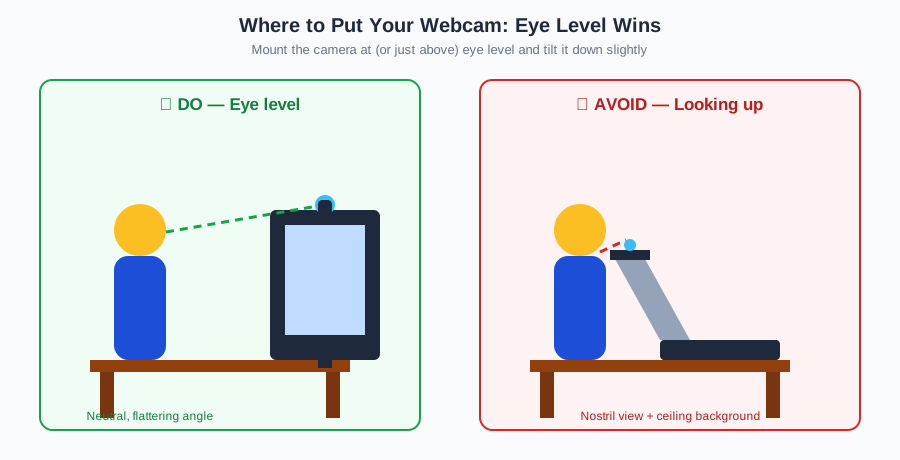
Then fix your light: face a window or put your desk lamp behind the camera, aimed at your face. A monitor light bar works too — it lights your face without taking up desk space. Backlit (window behind you) is the fastest way to ruin a $130 webcam’s image, so reduce monitor and window glare first and let the camera do the rest.
If you run dual monitors, put the webcam on the monitor you look at during calls — your gaze reads as “eye contact” only on that screen.
FAQ
Is 1080p enough for Zoom calls, or do I need 4K?
1080p is enough. Zoom and Teams typically transmit 720p–1080p in live calls, so a 4K sensor’s extra pixels never reach your colleagues — spend the money on a better lens and autofocus instead.
Does autofocus matter on a webcam?
Yes, if you move during calls. Autofocus keeps your face sharp when you lean in or sit back; fixed-focus cameras only stay sharp at one set distance.
What field of view is best for video calls?
78° is the best all-rounder for solo callers — it frames head and shoulders naturally. Choose 58° for a tighter, more flattering solo frame, or 90°+ if two people share the camera.
Are webcam microphones good enough for meetings?
For one person in a quiet room, yes — the dual mics on the Anker and Logitech picks here are clear enough. In noisy rooms, a headset still wins.
Do I need webcam software?
No, for basic calls. Every webcam here is plug-and-play over USB; companion apps only unlock extras like FOV adjustment and firmware updates.
Should I buy a 4K webcam for future-proofing?
Not for video calls. Streaming platforms cap call quality well below 4K, and 4K webcams cost 2–3x more while demanding much more light and USB bandwidth to look good.
Prices checked on Amazon US as of October 2026.