

A USB-C hub is a small portable splitter that borrows power from your laptop charger and adds a few ports (HDMI, USB-A, SD). A docking station is a desk unit with its own 130–230 W power brick that charges your laptop, drives two or more monitors, and adds a dozen-plus ports over one cable. Most single-monitor desks need only a hub; multi-monitor desks need a dock.
As an Amazon Associate I earn from qualifying purchases.
USB-C Hub vs Docking Station for Home Office: Which Do You Need? (2026)
TL;DR — The verdict for 2026:
- Buy a hub (~$20–60) if: one monitor, a portable laptop, and basic USB/HDMI expansion.
- Buy a dock (~$140–400) if: two or more monitors, wired ethernet, or one-cable charging.
- The quotable rule: a hub borrows your charger and one port; a dock replaces your charger and adds a dozen ports.
USB-C Hub vs Docking Station: The Head-to-Head Verdict
Choose the hub if your desk is simple; choose the dock if your desk is a system. A $30 hub and a $300 dock both plug into one USB-C port — what happens after that is completely different. The hub divides one 10 Gbps pipe among a handful of ports. The dock brings its own power supply and up to 40 Gbps of Thunderbolt bandwidth.
| USB-C hub | Docking station | |
|---|---|---|
| Size and power source | Pocket dongle, bus-powered | Desk unit, own 130–230 W AC brick included |
| Charges the laptop | Passes charger power through (60–85 W typical after a ~15 W reserve) | Powers the laptop directly (65–98 W; some hit 130 W on matching brands) |
| Bandwidth to the laptop | 5–10 Gbps (USB 3.x) | 10 Gbps (USB-C dock) or 40 Gbps (Thunderbolt dock) |
| Display outputs | 1 screen, 4K at 30 or 60 Hz | 2–3 screens; dual 4K at 60 Hz on Thunderbolt |
| Wired ethernet | Rare (a few hubs include Gigabit) | Standard Gigabit; some offer 2.5 GbE |
| Typical port count | 5–9 | 10–18 |
| Price, as of November 2026 | About $20–60 | About $140–400 |
| Best for | Travel desks, one-monitor setups | Permanent multi-monitor desks, hot-desking hybrids |
Note the bandwidth row: one 4K-at-60 Hz video stream plus a fast external SSD already strains a 10 Gbps hub. That is why hubs top out at one screen and why docks exist. We compared specs, prices, and verified owner feedback across six models.
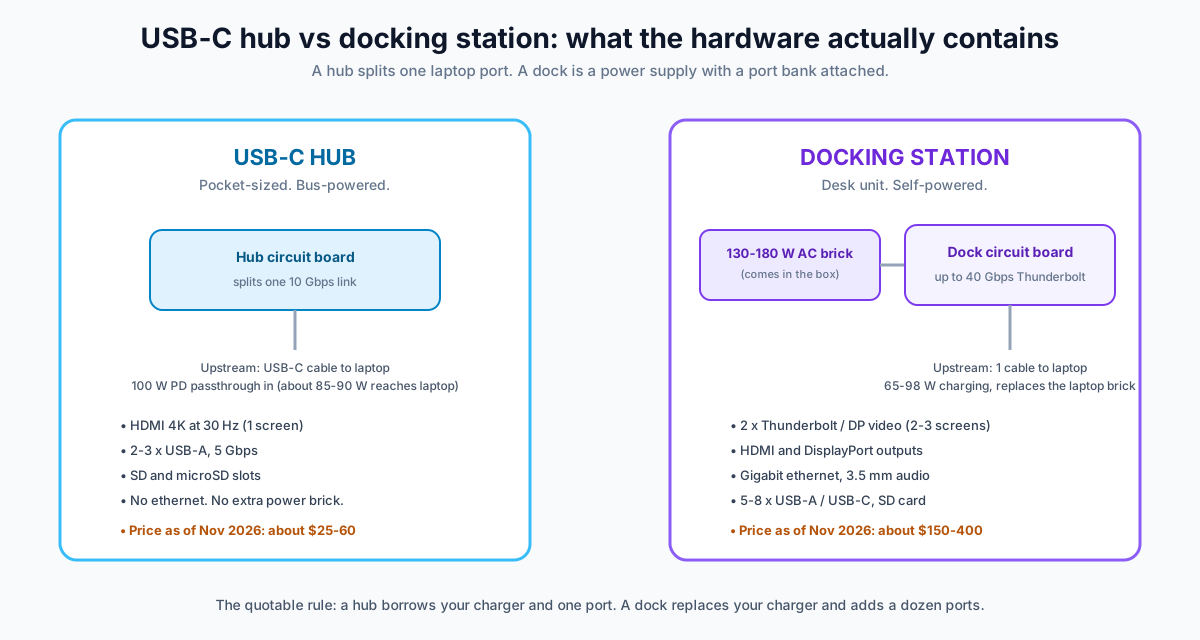
What Does a Docking Station Have That a Hub Doesn’t?
Own power budget, real display outputs, ethernet, and upstream charging that replaces your laptop brick.
Power budget. A hub has no power supply — it keeps 10–15 W for itself, so a 100 W charger through a hub delivers ~85–90 W to the laptop. A dock’s 130–230 W brick pushes 65–98 W upstream itself. The Dell WD19S ships a 180 W adapter: 130 W to Dell laptops, 90 W to other brands (per Dell’s spec).
Display outputs. Hubs carry one HDMI port: one screen, full stop. Docks carry HDMI plus DisplayPort (or Thunderbolt ports doubling as display outputs) — enough for two or three monitors.
Ethernet. Almost no hub ships one. Every full dock has a Gigabit jack, and premium ones like the CalDigit TS4 step up to 2.5 GbE — the cheapest reliability upgrade for video calls that drop on Wi-Fi.
Upstream charging and firmware. Plug a dock into the wall and the laptop’s charger goes into a drawer. A hub forces you to keep the laptop charger in the loop, because passthrough costs wattage. Corporate docks like the WD19 add IT firmware (PXE boot, MAC pass-through) no hub offers.
How Much USB-C Power Delivery Do You Actually Need?
Match the dock or hub’s output to your laptop’s class: 45 W for thin-and-lights, 65–70 W for mainstream ultrabooks, 90 W or more for performance machines.
- 45 W covers thin-and-lights, Chromebooks, tablets, and iPads.
- 65–70 W covers mainstream ultrabooks — a MacBook Air fast-charges at 67 W. Hub passthrough (60–85 W) gets marginal here: a busy ultrabook on video calls can slowly lose charge.
- 90 W+ is workstation territory: a 14-inch MacBook Pro ships with a 96 W adapter, the 16-inch wants 140 W. The CalDigit TS4’s 98 W fully feeds a 14-inch MacBook Pro but cannot fast-charge a 16-inch one — that class needs its own 140 W brick.
The quotable rule: the dock’s charging wattage should equal or exceed the wattage of the charger that came with your laptop. Buy below that number and you slowly drain the battery.
Can Either One Drive Dual Monitors? The DisplayLink and MST Catch
A hub drives one monitor. A dock drives two or three — but on a Mac, only if you dodge the MST trap.
Most multi-monitor USB-C docks use DisplayPort MST to split one video signal into two; Windows and ChromeOS handle it fine. macOS does not support MST extended displays at all — plug an MST dock into a Mac and the second screen mirrors the first instead of extending it (per Plugable’s compatibility documentation).
Apple Silicon limits compound the issue: base M1 and M2 chips support one external display natively; base M3 supports two only with the lid closed; base M4 and M5 support two with the lid open; Pro and Max chips support three or more. A dock cannot add displays the laptop’s chip refuses to drive.
The workaround is DisplayLink — Synaptics technology that renders extra screens over USB. The catch for this article’s lineup: none of the six models we compared include DisplayLink. If you have a base M1 or M2 Mac and need two extended screens, you need a DisplayLink-equipped dock — a plain hub or MST dock will not do it. We cover the full DisplayLink workflow in our triple-monitor setup guide.
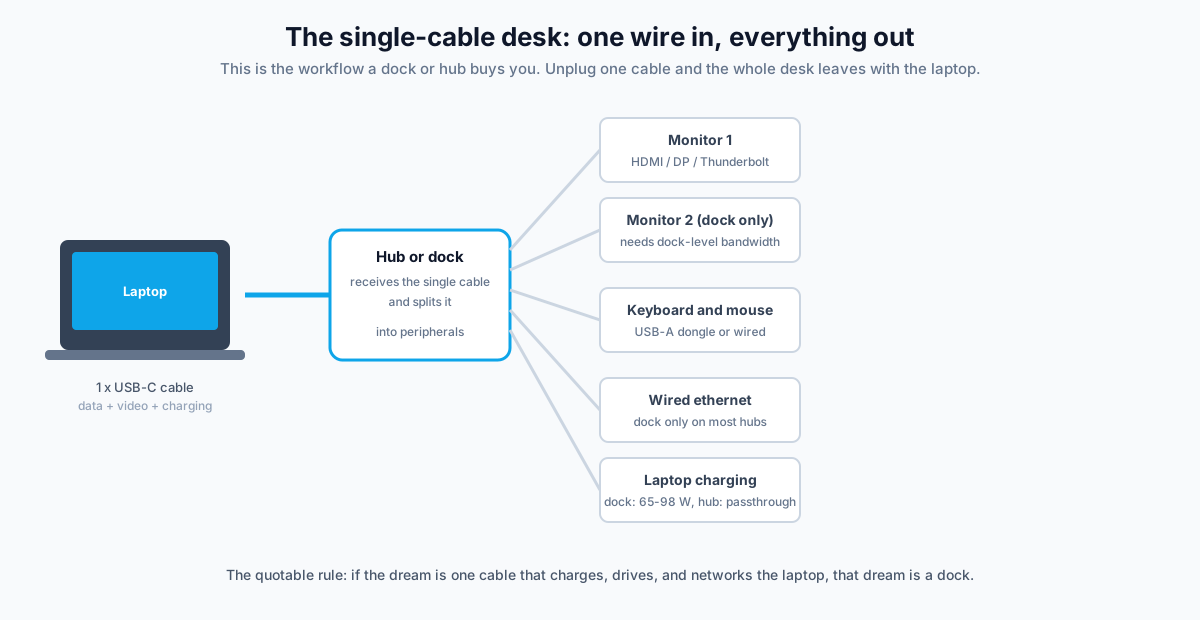
Three Single-Cable Desk Recipes: Basic, Dual-Monitor, and Workhorse Setups
Match your monitor count to a recipe, then buy the hardware it names.
Recipe 1 — Basic (hub, ~$30 of hardware). Laptop → 7-in-1 hub → one 4K monitor, USB dongle peripherals, SD slot, charger in the passthrough port. The travel desk.
Recipe 2 — Dual-monitor (USB-C dock, ~$140 of hardware). Laptop → Anker 575 or similar → two monitors, ethernet, keyboard, mouse, webcam, 85 W charging — all through one cable. This is the standard home-office recipe.
Recipe 3 — Workhorse (Thunderbolt 4 dock, ~$390 of hardware). Workstation laptop → CalDigit TS4 → dual 4K60 monitors, 2.5 GbE, SSDs, audio, 98 W — the video-editing desk.
Which One Do You Need? A 5-Question Decision Check
Answer these five in order — the first “no” that matters usually settles it.
- How many monitors? Two or more means a dock. One monitor is a hub’s job.
- Does your laptop’s USB-C port support DisplayPort Alt Mode or Thunderbolt? Most laptops from the last five years do, but budget Chromebooks carry data-only USB-C ports that cannot drive a monitor — neither a hub nor a dock fixes that.
- How much charging power? Under 45 W: anything works. 65–96 W: a dock is the safe pick. Over 100 W: keep the original brick for full-speed charging.
- Do you need wired ethernet? If video calls drop on Wi-Fi, a dock’s ethernet jack is the cheapest reliability upgrade on this list.
- Do you undock every day? Hybrid workers get the most from one-cable docking — one motion in, one motion out. A laptop that never leaves the desk is fine on a hub.
Mostly hub answers: buy the hub and put the $200+ saved toward a better monitor. Mostly dock answers: buy the dock — a hub will just be replaced in six months.
The Best USB-C Hubs and Docking Stations for 2026
Timing note: docks are classic Black Friday desk accessories with 20–40% discounts typical in late November. Black Friday week (Nov 27–30) is when docks hit their yearly floor — our Black Friday desk accessories deals guide tracks the discount bands to expect.
Best hubs
Best hub overall — Anker PowerExpand+ 7-in-1 (A8352) (~$30–35, as of November 2026). 4K HDMI, Gigabit ethernet, two USB-A 3.0, SD/microSD, 60 W passthrough — the rare hub with ethernet. Caveat: 60 W won’t keep a loaded 14-inch laptop topped up.
Best ultra-budget hub — UGREEN Revodok 6-in-1 (~$19–25 on sale, as of November 2026). 4K-at-30 Hz HDMI, three USB-A, SD/TF reader. No power passthrough, no ethernet — a pure port-expander for a laptop that keeps its own charger.
Best-looking hub (specs only) — Satechi USB-C Multi-Port Adapter V2 ($89.99). Machined aluminum, 4K-at-60 Hz HDMI, Gigabit ethernet, color-matched Mac finishes. The catch is the 60 W passthrough — the weakest charging in this comparison — making it a design pick, not a value pick. Satechi’s newer 8-in-1 V2 bumps passthrough to 115 W at ~$71.
Best docks
Best Thunderbolt dock — CalDigit TS4 (~$390 on Amazon, list $449.95, as of November 2026). 18 ports: three Thunderbolt 4, three USB-C 10 Gbps, five USB-A, DisplayPort 1.4, UHS-II SD/microSD, 2.5 GbE, audio — 98 W upstream from the included 230 W brick. Caveat: no HDMI, so you need a USB-C/DisplayPort monitor or adapter.
Best value full dock — Anker 575 USB-C Docking Station 13-in-1 (A8392) (~$140 street, down from the $199.99 MSRP, as of November 2026). Two HDMI plus DisplayPort, three USB-C, three USB-A, Gigabit ethernet, SD/TF, audio — 85 W upstream from the included 135 W adapter. Caveat: triple-display tops out at 1080p (single 4K60 is fine); the host needs DisplayPort Alt Mode.
Best for Dell laptops — Dell WD19S (~$100–180 street/open-box, as of November 2026). Two DisplayPort, HDMI, three USB-A, two USB-C, Gigabit ethernet, 130 W charging — on Dell laptops only (90 W for others). A corporate fleet standard with long driver support. Caveat: MST-based multi-monitor mirrors on macOS. For a deeper dive, see our dual-monitor docking station roundup.
What Should You Check Before Buying?
Cable, charger wattage, monitor inputs, and your Mac’s chip — in that order.
Cable quality. Passive Thunderbolt cables run full 40 Gbps only to ~0.8 m. Cheap unmarked USB-C cables can silently cap at 480 Mbps and bottleneck a $400 dock — if a dock underperforms, suspect the cable first.
Charger wattage match. A 60 W hub behind a 96 W laptop is a slow drain under load. Compare upstream PD against your laptop’s included adapter, not its idle draw.
Monitor compatibility. The TS4 has no HDMI — fine for USB-C/DisplayPort monitors, an adapter otherwise. Budget 4K monitors that accept only HDMI 1.4 cap at 4K30 and waste a 4K60-capable hub.
Mac M-series limits. Base M1/M2: one external display, period. Base M3: two with the lid closed; M4/M5: two open. Need more on a base chip? You need DisplayLink, not a bigger dock.
Port audit. Five USB devices and two monitors is a dock; a monitor, a dongle, and a card reader is a hub. Don’t pay for 18 ports you’ll never use.
FAQ: USB-C Hubs vs Docking Stations
Can a USB-C hub charge my laptop?
Yes, if it has a USB-C PD passthrough port — the laptop’s charger plugs into the hub, which passes roughly 85–90% of the wattage through.
Can I use a Dell WD19 dock with a Mac or non-Dell laptop?
Yes, as a standard USB-C dock — but charging drops to 90 W and multi-monitor uses MST, which mirrors instead of extending on macOS.
Is a Thunderbolt 4 dock worth double the price of a USB-C dock?
Yes, if you run dual 4K monitors, fast external SSDs, or a 90 W+ laptop — the 40 Gbps pipe and 90 W+ charging are things a 10 Gbps USB-C dock cannot match; for one monitor and basic peripherals, no.
Will a hub or dock work with my old laptop?
Only if its USB-C port supports DisplayPort Alt Mode — data-only USB-C ports can add peripherals but will never drive a monitor.
Can I leave a dock plugged in 24/7?
Yes — modern docks and laptops manage charge levels in firmware, and a docked laptop spends most of its life on trickle charge; heat, not the charger, is what ages batteries.
The Bottom Line
Buy the hub if your desk is one monitor and a few USB devices. Buy the dock if your desk is a system — two-plus monitors, wired ethernet, and one cable that charges everything. The most expensive mistake in this category is not buying a bad dock; it is buying a $35 hub for a two-monitor desk and replacing it with the $140 dock six months later. Count your monitors, check your laptop’s charging wattage, and buy once.