Monitors & Desk Setup Guide: Screens, Arms, Stands, and Dual-Display Ergonomics
A great monitor setup comes down to three decisions: the screen itself, what holds it up, and how you position it. Get those three right and you get more desk space, less neck and eye strain, and a workstation that feels purpose-built for the way you work. This hub brings together every monitors guide on WorkWell Setup so you can start at the beginning or jump straight to the question you have.
What does this monitors hub cover?
Every guide in the monitors cluster lives below. Start with the topic closest to your problem; each one links back to the others where it helps.
| Guide | What you’ll find in it |
|---|---|
| Best home office monitors under $200 | Budget picks with solid color and text clarity for everyday office work |
| Monitor stand vs monitor arm | The full trade-off between risers, platforms, and articulated arms |
| Best single monitor arms | Ranked arms for one screen, with weight and desk-thickness ratings |
| Best dual monitor arms | Ranked arms for two screens, including gas-spring vs. post designs |
| VESA mount explained | How VESA patterns work and how to check your monitor’s compatibility |
| Dual monitor setup ergonomics | Screen height, distance, angle, and layout rules for two displays |
| Setting up dual monitors for WFH | The practical step-by-step: cables, display settings, and arrangement |
If you’re building a setup from zero, read in this order: screen, then stand-vs-arm, then VESA, then ergonomics. If you’re upgrading, jump to whichever piece you’re replacing.
How do I choose the right monitor for my home office?
Match the monitor to your work, not to the spec sheet. For documents, email, and video calls, a 24-inch 1080p display is perfectly comfortable. The most popular sweet spot for mixed office work is 27 inches at 1440p: text stays crisp without making everything tiny, and it’s the size most monitor arms handle easily. Creators working in photo, video, or design should consider 4K for the extra pixel density, especially at 27 inches and above.
Panel type matters less than it used to. IPS panels are the safest default for office work because colors and contrast hold up at an angle, which is exactly how you look at a screen on an arm. VA panels offer deeper blacks but can wash out off-axis; TN panels are largely irrelevant for office use now. A 60Hz refresh rate is fine for productivity, while 75Hz and up feels noticeably smoother when you scroll through long documents all day.
You don’t need to spend a lot to get a good office screen. Solid 24- and 27-inch office monitors regularly sell under $200, and our roundup of the best home office monitors under $200 tracks the ones with the best text clarity, brightness, and stands for the money.
Should I use a monitor stand or a monitor arm?
This is the single highest-impact decision after the screen itself. A monitor arm replaces the monitor’s factory stand entirely and clamps to the back of your desk, which frees the whole footprint underneath. Our monitor stand vs monitor arm guide goes deep, but here’s the summary:
| Monitor stand / riser | Monitor arm | |
|---|---|---|
| Desk space used | Occupies a large footprint on the desk | Clamp or grommet mount; near-zero desk footprint |
| Height adjustment | Fixed, or a few preset notches | Continuous, one-handed repositioning |
| Viewing angle | Screen stays where you put it | Tilt, swivel, and rotate freely (portrait mode included) |
| Ergonomics | Often too low; encourages hunching | Gets screen top to eye level in seconds |
| Cable management | Cables pile up behind the stand | Arms include cable clips along the arm |
| Cost (typical, Oct 2026) | $20–$50 | $30–$100 for a quality single arm |
Stands still make sense if your monitor never moves, you like the look of a wooden riser, or you want storage underneath. Arms win on ergonomics and desk space in almost every other case — and they’re the natural choice the moment you add a second screen.
Single monitor arm vs dual monitor arm: which do I need?
Buy the arm for the setup you actually have, not the one you imagine. If you run one screen, a single arm keeps things simple and cheap: most quality single arms support up to 32-inch screens and adjust with a light touch. Our ranked list of the best single monitor arms covers weight ratings and desk-thickness limits, the two specs that cause the most returns.
Two screens is where a dedicated dual arm pays off. Dual arms come in two flavors: a single post with two fixed brackets (sturdy and affordable), and gas-spring arms with full independent motion (easier to fine-tune, more expensive). Either one keeps both screens at the same height and angle, which is the hardest thing to achieve with two factory stands. See our picks for the best dual monitor arms for the models worth buying.
One practical tip: if there’s even a 50% chance you’ll add a second monitor within a year, buy the dual arm now. Buying a single arm and replacing it later costs more than the price difference.
What is VESA, and will a mount fit my monitor?
VESA is the standardized pattern of four screw holes on the back of a monitor that a mount or arm bolts into. The pattern is measured in millimeters, center to center, horizontally and vertically. The three patterns you’ll see most:
- 75 x 75 mm — small monitors, generally 23 inches and under
- 100 x 100 mm — the most common pattern; covers the vast majority of 24- to 32-inch office monitors
- 200 x 200 mm — larger and ultrawide screens, typically 34 inches and up
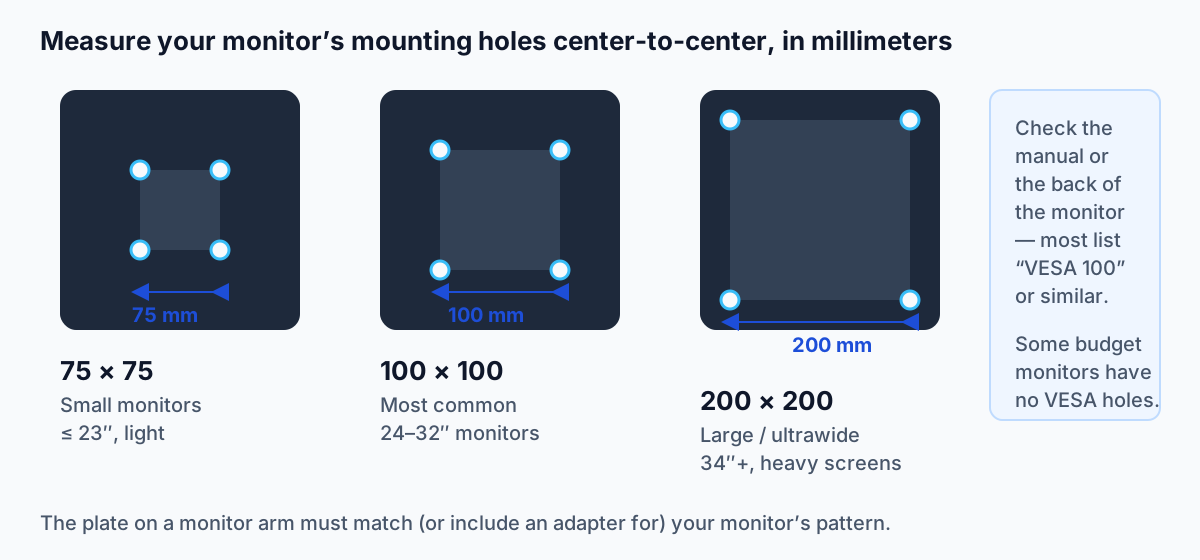
Check your monitor’s manual or spec sheet for a line like “VESA: 100 x 100” — most list it. If the information isn’t there, grab a ruler and measure the distance between the hole centers yourself. One warning worth knowing: some budget monitors ship with no mounting holes at all, so confirm this before buying any arm. Our VESA mount guide walks through adapters, plate sizes, and the exceptions in detail.
Also confirm your arm’s weight rating covers your monitor. Arms are rated in pounds or kilograms per screen, and an ultrawide that exceeds the rating will sag no matter how nice the arm is.
How should I arrange my monitors for good posture?
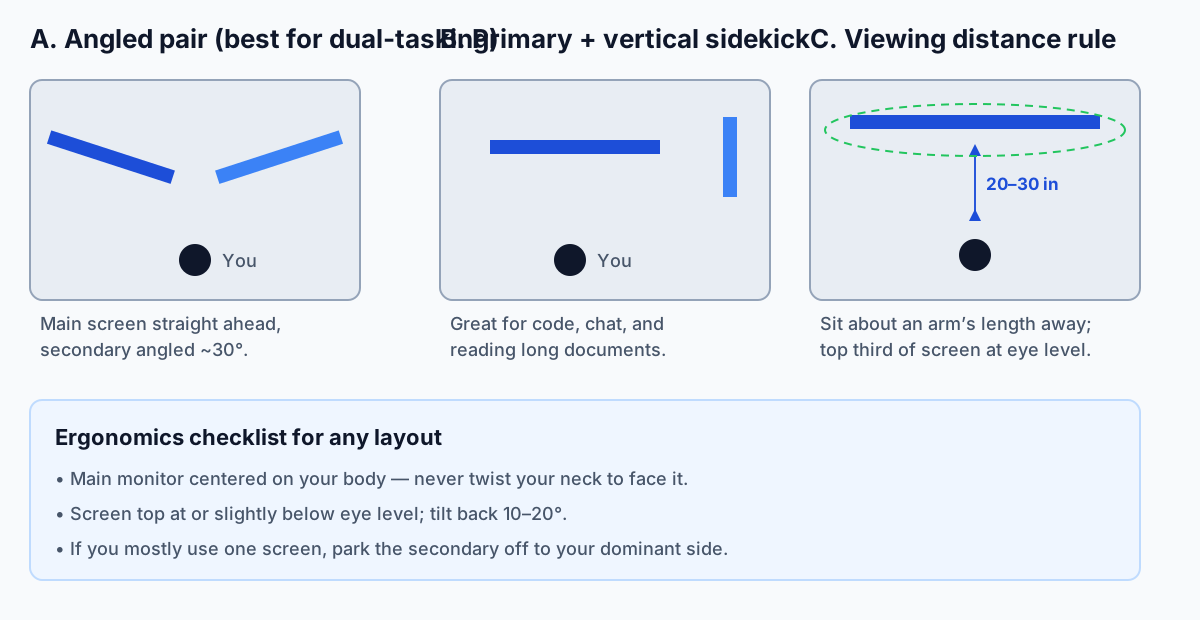
Your main screen should face you dead-on, with the top third of the display at or just below eye level. That one sentence covers most of what ergonomics research says about monitor placement. Sit roughly an arm’s length away — about 20 to 30 inches — and tilt the screen back 10 to 20 degrees so your gaze lands slightly downward.
For two screens, three layouts cover nearly every workflow:
- Angled pair. The screen you use most sits centered in front of you; the secondary screen angles in at about 30 degrees on your dominant side. Best for general multitasking.
- Primary plus vertical. One horizontal screen for main work, one rotated to portrait for chat, code, or long documents. A favorite of developers.
- Equal split. Two screens side by side, centered on your body, when you genuinely split attention 50/50 — think trading or comparing documents.
Never center your body on the seam between two screens and twist your neck all day; pick a primary screen and give it the center spot. The diagram above shows all three layouts from a top-down view. For the full placement rules — height, distance, brightness matching, and neck-strain troubleshooting — read our dual monitor ergonomics guide.
How do I connect and configure dual monitors for remote work?
The hardware is the easy half. Once both screens are mounted, connect them to your computer and set the arrangement in your operating system so the cursor travels naturally between them:
- Connect the cables. HDMI and DisplayPort are both fine for office work; use the ports your monitors and computer share. Adapters for USB-C and Thunderbolt docks are common with laptops.
- Detect both displays. On Windows, open Settings > System > Display; on macOS, open System Settings > Displays. Both screens should appear.
- Match the on-screen arrangement to your desk. Drag the display icons so left and right match reality — this is the step people skip, and it’s what makes the mouse feel wrong.
- Set scaling. Use 100% scaling on 1080p and typically 125–150% on 1440p so text stays readable.
- Match brightness. Drop the brighter screen to match the dimmer one; mismatched brightness is a common cause of eye fatigue.
Our walkthrough for setting up dual monitors for working from home covers docks, laptop lids, and the exact settings screens for Windows and macOS.
A laptop stand is worth considering — our guide covers the best options.
How much should I budget for a complete monitor setup?
Prices below are typical US street prices as of October 2026, based on the budget monitors and arms we’ve reviewed:
| Setup | Screen(s) | Mounting | Typical total |
|---|---|---|---|
| One screen, basic | 24″ 1080p office monitor | Stock stand | Under $200 |
| One screen, ergonomic | 27″ 1440p monitor | Single monitor arm | $250–$400 |
| Dual 24″ screens | Two 24″ 1080p monitors | Dual monitor arm | $300–$500 |
| Dual 27″ screens | Two 27″ 1440p monitors | Dual gas-spring arm | $550–$800 |
| Single ultrawide 34″ | 34″ 3440×1440 ultrawide | Heavy-duty arm | $500–$800 |
The arm is usually the smallest line item and the biggest ergonomic upgrade per dollar. If your budget is tight, buy the monitor first and add the arm later — but check VESA compatibility now so you don’t have to replace the screen when the time comes.
Black Friday is the loudest monitor sale of the year (20–40% off), but also the trickiest — our Black Friday monitor deals guide shows how to spot a real cut.
Frequently asked questions
What size monitor is best for a home office?
A 27-inch 1440p monitor is the best all-around choice for most home offices, with 24-inch 1080p being perfectly comfortable for documents and email on a tighter budget.
Are monitor arms worth it for one screen?
Yes — a monitor arm gets the screen to proper eye level, reclaims the desk footprint the factory stand used, and lets you reposition the screen with one hand, which a fixed stand can’t do.
How do I know if my monitor is VESA compatible?
Check the spec sheet for a “VESA” line (usually 75 x 75 or 100 x 100), or measure the distance between the four screw holes on the back of the monitor center-to-center in millimeters.
Can any monitor arm hold any monitor?
No. Match the arm’s VESA pattern to your monitor’s holes and confirm the arm’s per-screen weight rating covers your monitor’s weight — ultrawides frequently exceed light-duty arms.
How far should I sit from my monitor?
Sit about an arm’s length away, roughly 20 to 30 inches, with the top third of the screen at or just below eye level.
Is it better to have two monitors or one ultrawide?
Two monitors give you a physical boundary between tasks and more total height; one ultrawide gives a cleaner look with no center bezel. For pure productivity, dual 27-inch screens usually win on screen area per dollar.
Do I need special software to use dual monitors?
No — Windows and macOS both support multiple displays out of the box; you only need to arrange the displays in settings so the layout matches your desk.
Where to go next
A monitor setup is a system: the screen, the mount, and the ergonomics all have to agree. Pick your starting point from the cluster map at the top — or start with the piece most people get wrong, whether a stand or an arm is right for you — and build from there.
A monitor privacy screen is worth considering — our guide covers the best options.