The best USB-C docking station for dual monitors is the Anker 575 (~$200) for Windows — dual 2K 60Hz monitors, 85W charging, 13 ports. Base MacBook owners need a DisplayLink dock like the Plugable UD-6950PDZ (~$200), since Apple limits base M1–M4 chips to one native external display.
See our monitor desk setup guide for the full setup walkthrough.
As an Amazon Associate I earn from qualifying purchases.
Best USB-C Docking Stations for Dual Monitors (2026)
TL;DR — The 6 best USB-C docking stations for dual monitors:
- Best for Windows (value): Anker 575 — ~$200; 13-in-1, 85W charging, dual 2K 60Hz.
- Best for Mac (DisplayLink): Plugable UD-6950PDZ — ~$200; triple 4K 60Hz, 100W charging, defeats the base-Mac one-display limit.
- Best premium Thunderbolt dock: CalDigit TS4 — ~$380; 18 ports, 98W charging, dual 6K 60Hz.
- Best budget office dock: Dell WD19S 180W — often under $100 on Amazon; dual 4K, 130W to Dell laptops / 90W to others.
- Best for ThinkPad owners: Lenovo ThinkPad USB-C Dock Gen 2 — ~$115; dual DisplayPort + HDMI, 90W charging.
- Best compact DisplayLink pick: Plugable UD-ULTCDL — ~$195; 3x HDMI, 100W charging, Mac dual-display fix.
All prices as of October 2026.
How can one cable drive two monitors?
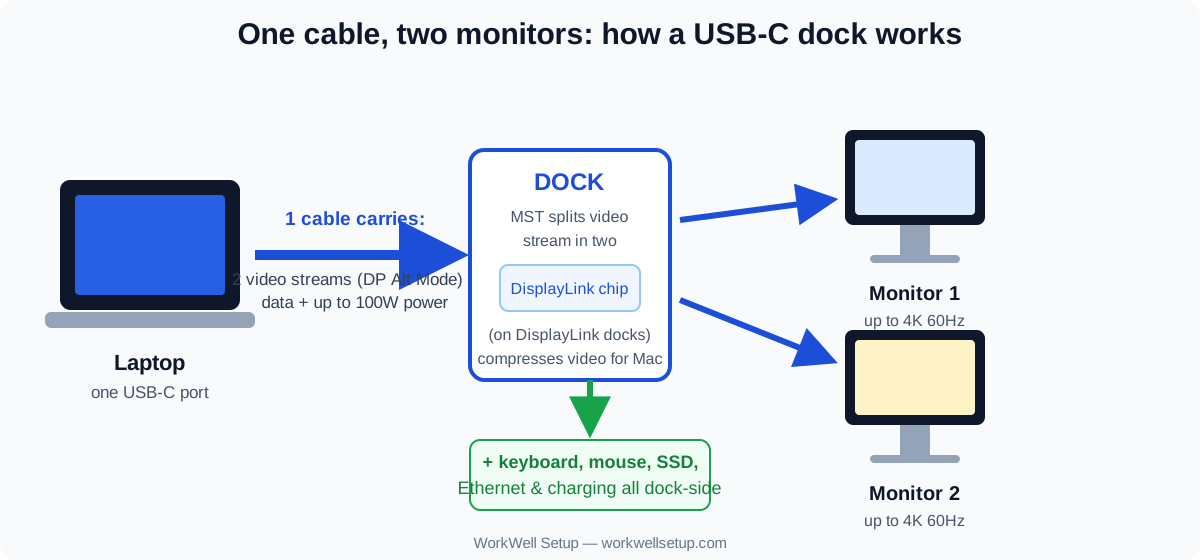
A USB-C cable carries far more than power. With DisplayPort Alt Mode, it borrows data lanes to carry a native DisplayPort signal from your laptop’s GPU, and the dock uses MST (Multi-Stream Transport) to split that stream into two independent extended displays.
The same cable also delivers power (65–100W USB Power Delivery), Gigabit Ethernet, USB peripherals, and SD card readers.
Three practical limits decide whether this works for you:
- Your port must support DP Alt Mode. Check your laptop specs for “USB-C with DisplayPort” or “Thunderbolt” — a charge-only or data-only USB-C port sends no video.
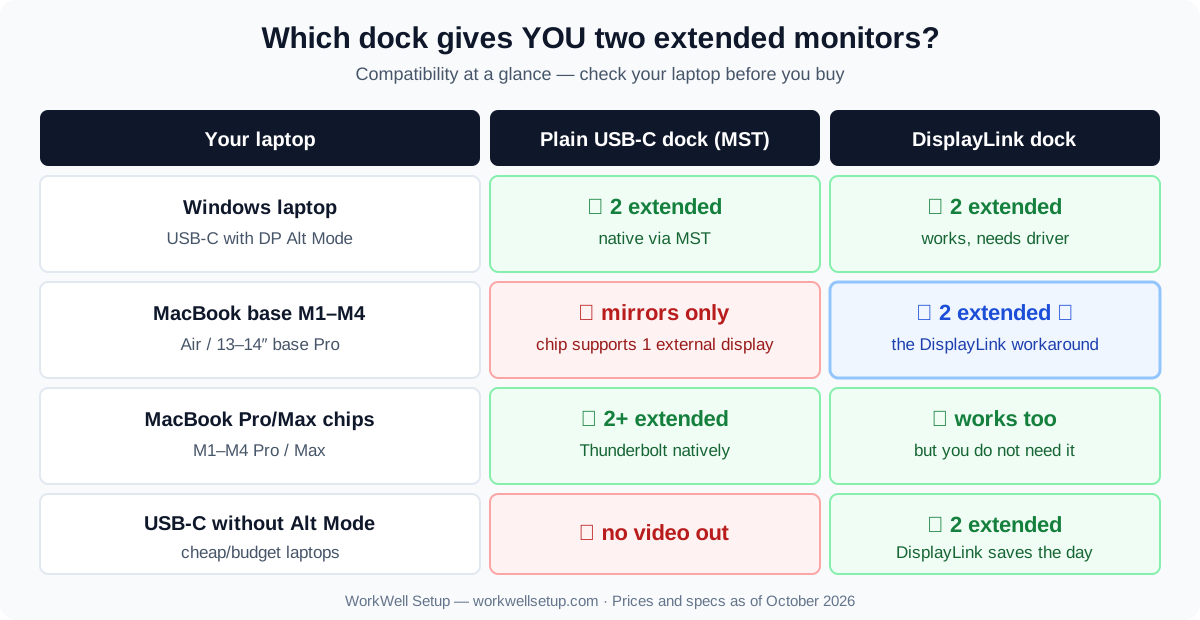
- macOS ignores MST. Apple does not support Multi-Stream Transport on any Mac. Plug a plain MST dock into a base-model MacBook and both monitors just mirror each other. This is why the DisplayLink picks below exist.
- Resolution budget is shared. Dual 4K at 60Hz is the realistic ceiling for modern USB-C docks; pushing triple displays usually means dropping the refresh rate or upgrading to Thunderbolt.
A USB-C dock gives you a one-cable desk, but the number of extended displays depends on your laptop’s chip, not on how expensive the dock is.
For arranging the screens themselves, see our guide to setting up dual monitors for working from home.
Why do MacBooks need a special dock for dual monitors?
Base-model Apple Silicon Macs (M1–M4, Air and base 14-inch Pro) support only one external display natively. This is a hard chip-level limit, not a software quirk.
The workaround is DisplayLink: it renders extra displays in software (via a driver from DisplayLink Manager) and ships them over plain USB data, so a base M-series MacBook can drive two or even three extended 4K monitors.
DisplayLink screens can show slight latency and compression, and they are not ideal for color-critical video editing, high-refresh gaming, or HDCP-protected streaming (Netflix may refuse to play on a DisplayLink screen). For office work — spreadsheets, code, email, meetings — most people never notice a difference.
MacBook Pro and Max chips (M1 Pro through M4 Max) support two to four native external displays over Thunderbolt, so a Thunderbolt dock works at full quality with no driver. Rule of thumb: base Mac chip = buy DisplayLink; Pro/Max chip = buy Thunderbolt.
The six docks, compared
| Dock | Price (Oct 2026) | Displays supported | Host charging | Video ports | Best for |
|---|---|---|---|---|---|
| Anker 575 | ~$200 | 3x 1080p or 2x 2K 60Hz (Windows only) | 85W | 2x HDMI, 1x DisplayPort | Windows value pick |
| Plugable UD-6950PDZ | ~$200 | 3x 4K 60Hz incl. base Macs | 100W | 3x HDMI + 3x DisplayPort | Mac users who need 2+ monitors |
| CalDigit TS4 | ~$380 | Dual 6K 60Hz (Thunderbolt) | 98W | 1x DisplayPort 1.4 + TB4 video | Premium Thunderbolt setups |
| Dell WD19S 180W | Under $100 on Amazon | Dual 4K 60Hz | 130W (Dell) / 90W (others) | 2x DisplayPort, 1x HDMI | Budget office fleets |
| Lenovo ThinkPad USB-C Dock Gen 2 | ~$115 | Dual 4K (1x 4K 60 max) | 90W | 2x DisplayPort, 1x HDMI | ThinkPad owners |
| Plugable UD-ULTCDL | ~$195 | 1x 4K 30Hz + 2x 1080p incl. base Macs | 100W (96W certified) | 3x HDMI | Compact Mac dual-display fix |
Which DisplayLink dock is best for a MacBook?
The Plugable UD-6950PDZ (~$200 as of October 2026) is the DisplayLink dock to beat. This 12-in-1 station has three HDMI and three DisplayPort outputs, driving up to three 4K displays at 60Hz on any USB-C, USB4, or Thunderbolt computer — including base M1–M4 Macs. Six USB 3.0 ports, Gigabit Ethernet, a 3.5mm audio jack, and 100W laptop charging round out the package.
On a Mac, install the DisplayLink Manager driver (a two-minute download, plus one screen-recording permission in macOS Settings); Windows pulls it in automatically via Windows Update. Plugable backs it with a 2-year warranty and lifetime US-based support, which matters for a dock that depends on a driver staying compatible with future macOS updates.
The cheaper alternative is the Plugable UD-ULTCDL (~$195 as of October 2026). It also defeats the Mac one-display limit, but with a smaller resolution budget: one HDMI does 4K at 30Hz (direct from your GPU), the other two do 1920×1200 at 60Hz through DisplayLink. It still charges the laptop at 100W (96W certified), with four USB 3.0 ports, a USB-C port with 20W phone charging, Gigabit Ethernet, and an SD reader. Pick the UD-6950PDZ for dual 4K monitors; pick the UD-ULTCDL if your second screen is 1080p and you want the smaller footprint.

Which dock is best for a Windows laptop?
For most Windows users the Anker 575 (~$200, frequently ~$140 during Amazon sales) is the sweet spot. This 13-in-1 offers two HDMI plus one DisplayPort: triple 1080p 60Hz or dual 2K 60Hz on Windows via MST. The 85W laptop-charging port handles most 13–15 inch ultrabooks, a second 18W USB-C port fast-charges a phone, and you also get three USB-A ports, a 10Gbps USB-C data port, Gigabit Ethernet, SD/microSD slots, and a 3.5mm audio jack.
One caveat: on macOS and iPadOS the 575 can only mirror, because Apple does not support MST — it is a Windows-first dock.
Office buyers on a budget should look at the Dell WD19S 180W, which routinely sells for under $100 on Amazon (a deal at ~$82 was spotted in October 2026). Two DisplayPort 1.4 outputs plus HDMI for dual 4K at 60Hz, three USB-A ports, two USB-C ports (one multifunction with DisplayPort), and Gigabit Ethernet. It delivers 130W to Dell laptops and 90W to non-Dell machines, so it can keep a 15-inch workstation charged under load. Bulkier than the Anker, but for a fleet of Dell Latitudes or XPS machines it is the rational buy.
ThinkPad households get their own budget star: the Lenovo ThinkPad USB-C Dock Gen 2 (~$115 on Amazon as of October 2026). Three USB 3.1 ports, two USB 2.0, one HDMI and two DisplayPort outputs for up to three external monitors (one at 4K 60Hz, depending on the laptop), Gigabit Ethernet, a combo audio jack, and 90W charging from the included adapter. Lenovo’s enterprise driver support and firmware updates make it the low-drama pick for ThinkPad fleets.
Is a Thunderbolt dock worth the extra money?
If your laptop has Thunderbolt 3/4 or USB4 and you want the best dual-monitor experience, yes: Thunderbolt carries up to 40Gbps — roughly four times USB-C — so dual 4K or dual 6K at 60Hz runs with bandwidth to spare for fast SSDs and 2.5GbE networking.
The reference Thunderbolt dock is the CalDigit TS4 (~$380 as of October 2026). Eighteen ports: three downstream Thunderbolt 4 ports, three USB-C 10Gbps, five USB-A 10Gbps, DisplayPort 1.4, 2.5GbE Ethernet, UHS-II SD and microSD readers, and front/rear audio jacks. It charges the host at 98W and supports a single 8K 60Hz display or dual 6K 60Hz on Mac (Pro/Max chips) and Windows. It is Wirecutter’s long-running Thunderbolt dock pick: the aluminum chassis stays put under stiff cables, and CalDigit’s firmware support is excellent.
The counterpoint: with 1080p or 1440p monitors and plain USB-C with DP Alt Mode, a $200 dock does everything you will notice — Thunderbolt pays off for dual 4K+, Pro/Max MacBooks, and fast NVMe SSDs through the dock.
How do I pick the right dock in five minutes?
- Check your USB-C port. Look for “DisplayPort Alt Mode” or “Thunderbolt” in your laptop specs. No Alt Mode means no native video — you need a DisplayLink dock regardless of brand.
- Check your chip. Base Apple M1–M4 (Air, base Pro) supports one external display: buy a DisplayLink dock. Windows with Alt Mode: any MST dock works. MacBook Pro/Max: a Thunderbolt dock gives the best quality.
- Count your wattage. A 13-inch ultrabook is happy at 65W; a 15–16 inch machine wants 85–100W; a mobile workstation wants 130W+. Underpowered charging means the battery drains while docked.
- Match the resolution. Two 1080p monitors work on almost anything; dual 4K at 60Hz needs DisplayPort 1.4 or Thunderbolt — verify the exact resolution table, not just “supports dual monitors.”
- Budget for the driver reality. DisplayLink docks need a driver install on macOS (a policy question for locked-down work laptops). Thunderbolt/MST docks are driver-free.
Once you’ve picked a dock, see our roundup of desk accessories that actually boost productivity — and keep it tidy with our DIY desk cable management guide.
Frequently asked questions
Can a USB-C docking station run two monitors?
Yes — if your laptop’s USB-C port supports DisplayPort Alt Mode, any MST or Thunderbolt dock can drive two extended monitors from that single cable.
Do I need DisplayLink for dual monitors on a Mac?
On a base M1–M4 MacBook Air or base MacBook Pro, yes: the chip supports only one native external display, so a DisplayLink dock is the only way to get two extended monitors.
Will a docking station charge my laptop?
Most full-size docks deliver 65–130W over the same cable; make sure the dock’s wattage meets or exceeds your laptop’s charger, or the battery drains under load.
Does a docking station slow down my monitors?
DisplayLink docks add slight latency and compression versus native GPU output, while MST and Thunderbolt docks run at full native quality with no added lag.
Can I use any USB-C port with a docking station?
No — video requires a USB-C port with DisplayPort Alt Mode or Thunderbolt; a charge-only or data-only port cannot drive monitors no matter which dock you buy.
Are cheap USB-C docks safe for dual monitors?
Sub-$50 docks usually lack the power delivery and bandwidth for stable dual displays — expect flickering, 30Hz output, or a slowly discharging laptop.