
Best Work-From-Home Desk Setup for Productivity (2026 Guide)
The most productive work-from-home desk setup isn’t the most expensive one — it’s the one where five things are right: a chair that supports your back, a monitor at eye level, a keyboard and mouse at elbow height, lighting that doesn’t strain your eyes, and cables that stay out of the way. Get those five right at any budget and you’ll outperform a $3,000 setup that gets them wrong.
As an Amazon Associate I earn from qualifying purchases.
This is the hub post for workwellsetup.com/: three complete setups by budget — under $500, under $1,000, and premium — each linking to our in-depth guides for every component. Use it as a shopping list, a priority order, or a sanity check on a setup you’re planning.
The Short Answer: The 5 Things That Actually Matter
- A chair that fits your back — the highest-impact single purchase. Adjustable lumbar support beats brand names.
- Monitor at eye level, arm’s length away — the top of the screen at or slightly below eye level. A $35 stand fixes this on any desk.
- Keyboard and mouse at elbow height — elbows near 90 degrees, wrists neutral. The most common setup mistake we see.
- Lighting that works with your screen, not against it — no glare, no squinting on video calls.
- Cables managed once, properly — an hour of cable work pays off every single day.
Everything below is these five principles applied at three budgets. The ergonomic rules don’t change with price — only the gear does.
Tier 1: The Starter Setup (Under $500)
The goal: fix the big three (chair, monitor height, input position) without spending real money. This tier is about eliminating pain points, not chasing premium features.
The build:
– Chair (~$200): the GABRYLLY mesh chair or Hbada — adjustable lumbar support and a headrest at the lowest price that still counts as ergonomic.
– Desk (use what you have — $0): any stable table works at this tier. Spend nothing here yet.
– Monitor height ($35): a basic monitor stand or a stack of books to get the screen top to eye level. If you’re buying a monitor, our budget monitor guide covers what matters.
– Keyboard and mouse ($60): the Logitech MX Keys vs MX Mechanical comparison will help you choose; at this tier, even Logitech’s mid-range wireless set is a huge upgrade over a laptop keyboard.
– Lighting ($30): a simple desk lamp positioned to the side — never behind the monitor where it creates glare.
– Cables ($25): a cable management box and a few adhesive clips — the starter version of our desk cable management ideas.
Total: roughly $350–$450, leaving headroom for the one upgrade that matters most if your current chair is terrible: put the extra $100 into the chair, not the desk. Our full home office setup under $500 guide breaks down every dollar.
Who this is for: anyone setting up a first home office, renters who can’t modify anything, or anyone testing whether WFH is permanent before investing.
Tier 2: The Balanced Setup (Under $1,000)
The goal: the sweet spot where every component is genuinely good and nothing needs replacing in two years. This is the tier we’d recommend to most people.
The build:
– Chair (~$300): the Sihoo Doro C300 — adjustable lumbar in both directions, 4D armrests, headrest. The value king.
– Desk (~$300): a 55–60 inch electric standing desk frame with a basic top — or a quality fixed desk if you know you’ll never stand. Our narrow standing desk guide covers compact options for small rooms.
– Monitor arm (~$40): a single monitor arm — the cheapest transformative upgrade in this whole list. Frees desk space, nails monitor height, and adjusts in seconds.
– Keyboard and mouse ($150): quiet mechanical keyboard for the office plus an ergonomic mouse — the pair you touch all day deserves the budget.
– Lighting ($60): a proper desk lamp for video calls or an entry monitor light bar — our light bar vs desk lamp comparison helps you choose.
– Cables ($40): an under-desk tray plus cable spine — the full no-drill cable hiding playbook, renter-friendly.
Total: roughly $890–$990. The complete breakdown with specific product picks is in our home office setup under $1,000 guide.
Who this is for: full-time remote workers who want a setup that disappears — no daily annoyances, no planned upgrades, just a workspace that works.
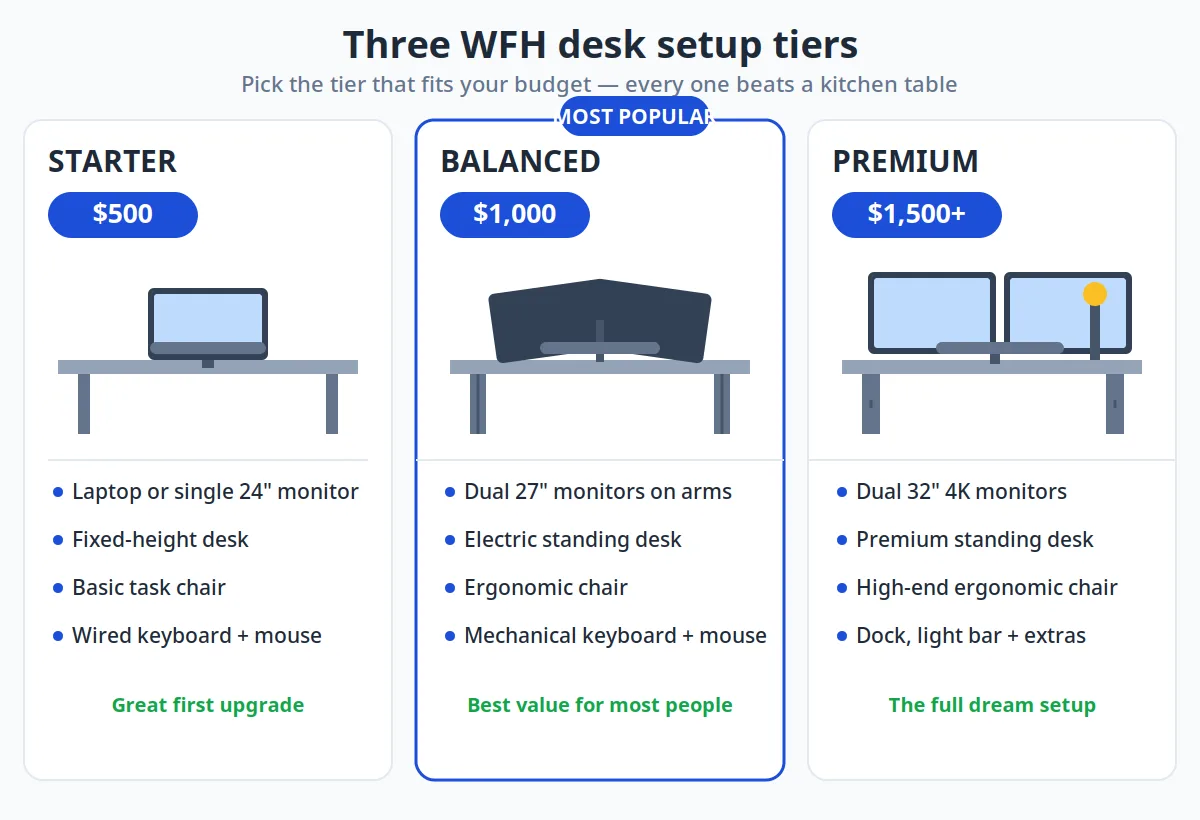
Tier 3: The Premium Ergonomic Setup ($1,500+)
The goal: the best-supported, most adjustable version of everything — bought once, kept for a decade. Diminishing returns are real past this point, but every item here earns its price in daily comfort.
The build:
– Chair ($400–$600 refurbished): a refurbished Herman Miller Aeron or Steelcase Leap — premium ergonomics at mid-tier prices via the office-liquidation market.
– Desk ($500–$700): a quality dual-motor standing desk with programmable presets. If you’re on the fence about standing at all, read our honest are standing desks worth it breakdown first.
– Monitor arms ($150–$200): a dual monitor arm setup — or a single premium arm if you run one ultrawide. Check VESA compatibility before buying.
– Keyboard and mouse ($200): top-tier quiet mechanical + ergonomic mouse, chosen from our keyboard comparison and mouse guide.
– Lighting ($100): a quality monitor light bar for focused work plus bias lighting — the full lighting playbook is in our desk lamp guide.
– Cables ($60): the complete standing-desk cable management system — tray, spine, and retractable power, all rated for desk movement.
Total: roughly $1,500–$2,000 depending on refurbished luck. Past this, you’re paying for aesthetics and brand rather than ergonomics.
Who this is for: people who work from home permanently and treat the setup as professional equipment — which, at 2,000+ hours a year, it is.
The Ergonomic Rules That Apply at Every Tier
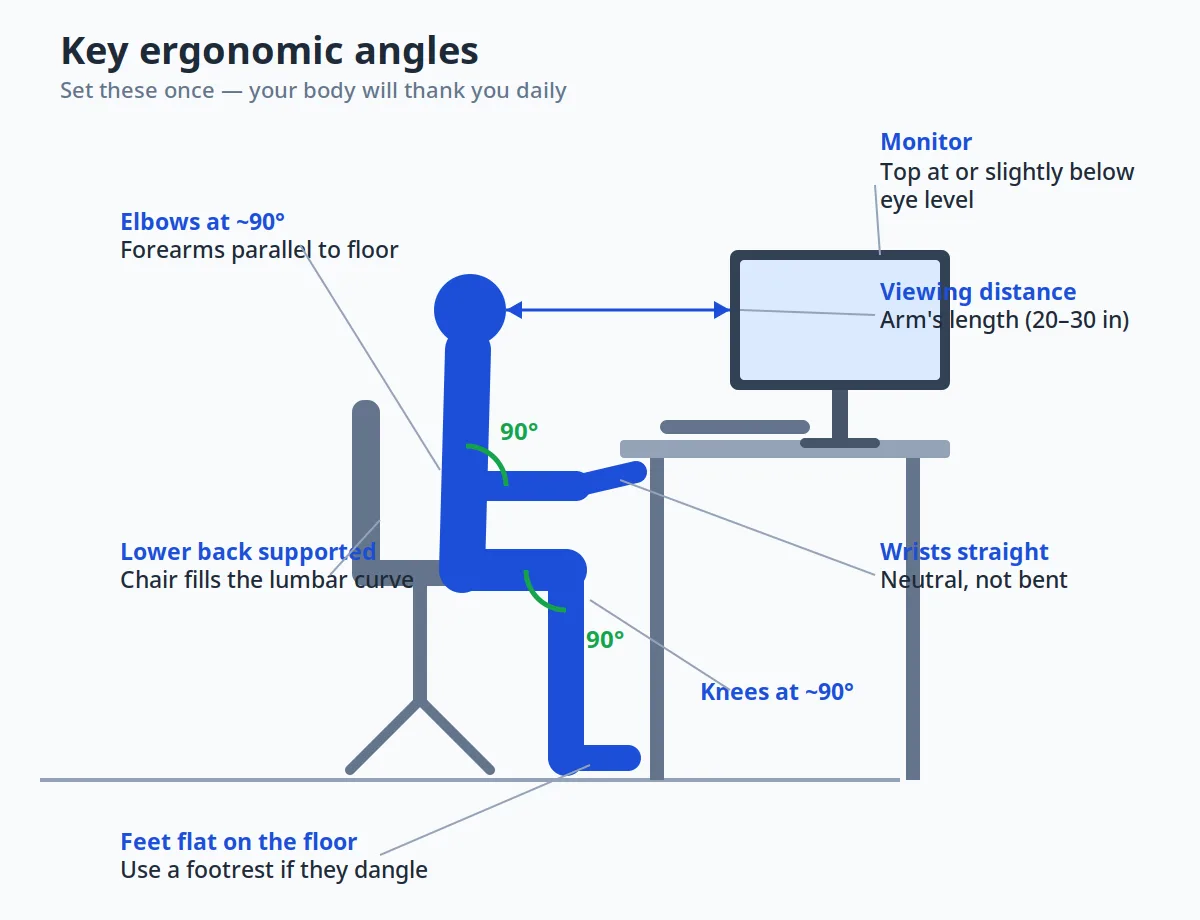
Budget changes the gear; it doesn’t change the geometry. These rules hold whether you spent $400 or $2,000:
Monitor: top of screen at or slightly below eye level, about an arm’s length away. This single adjustment fixes more neck pain than any chair upgrade. A monitor arm makes it a 10-second tweak instead of a furniture project — see our dual monitor ergonomics guide for multi-screen layouts.
Chair: feet flat, thighs roughly parallel to the floor, back against the lumbar support. If your chair can’t do this, no accessory compensates. The 10-minute version of all of this is our home office ergonomics checklist.
Keyboard and mouse: elbows near 90 degrees, wrists straight and neutral, mouse at the same height and close to the keyboard. Shoulder tension and wrist ache almost always trace back to this. Our keyboard and mouse positioning guide has the exact measurements.
The 30-30 rule: no position — sitting, standing, or otherwise — is healthy for hours unbroken. Change posture roughly every 30 minutes: stand, walk to get water, roll your shoulders. The best setup in the world can’t compensate for total stillness.
Lighting That Works With Your Screen
Bad lighting is the most underrated productivity killer in home offices: glare forces squinting, dim rooms cause eye fatigue, and terrible video-call lighting makes you look unprofessional on every meeting.
The rules: light the room, not the screen — your key light should come from the side, never from behind the monitor (glare) or directly behind you (silhouette on calls). For focused evening work, a monitor light bar lights the desk without touching the screen. For video calls specifically, a dedicated lamp at face height beats any overhead light. Can’t decide? Our light bar vs. desk lamp comparison settles it by use case.
Cable Management: Do It Once, Properly
Cables are the difference between a setup that feels finished and one that feels temporary — and they’re cheapest to fix on day one, before everything is plugged in.
The playbook: mount a tray under the desk for the power strip, route everything through it with velcro ties (not zip ties — you’ll re-route), and give standing desks a flexible cable spine so nothing snags when the desk moves. Renters: the entire no-drill approach works with adhesive and clamps. The full idea gallery is in desk cable management ideas, and moving-desk owners should read cable management for standing desks before the first snag teaches the lesson.
Frequently Asked Questions
Where should I spend my first $300 on a home office setup?
On the chair — specifically the most adjustable chair $300 buys (the Sihoo Doro C300 is the current value pick). The chair is the component your body touches all day, and it’s the hardest to upgrade incrementally. Second priority is monitor height (a $35 stand), third is keyboard and mouse position.
Laptop or desktop for a productive home office?
A laptop docked properly beats both a bare laptop and a desktop for most people: laptop for portability, plus an external monitor at eye level, an external keyboard and mouse at elbow height when docked. A bare laptop on a desk violates every ergonomic rule simultaneously — screen too low, keyboard too high. If you go laptop-only, at minimum add a laptop stand and external keyboard.
What’s the smallest viable productive setup?
A corner of a table, a decent chair, a monitor at eye level (even a cheap one on a stand), and an external keyboard and mouse — that’s the minimum that doesn’t actively hurt you. Our small bedroom office guide shows complete layouts for tight spaces, and the small-space ideas list proves square footage isn’t the constraint — geometry is.
How often should I upgrade my setup?
Buy right once rather than upgrading constantly: a good chair lasts 7–10 years, a quality desk frame 10+, monitor arms essentially forever. The components worth refreshing every 2–3 years are the consumable-adjacent ones — keyboard, mouse, and lighting tech. If you followed the tier builds above, there’s nothing on a forced replacement cycle.
Is a standing desk necessary for productivity?
No — it’s optional, not foundational. The ergonomic rules above deliver most of the benefit at any tier. A standing desk earns its place if you sit 6+ hours daily and will actually alternate; otherwise that $300–$500 buys more comfort elsewhere. Our full standing desk verdict walks through the honest pros and cons.
The Bottom Line
Productivity comes from geometry, not gear prices: chair that fits your back, monitor at eye level, inputs at elbow height, light without glare, cables out of the way. Pick the tier that matches your budget — under $500, under $1,000, or premium — apply the ergonomic rules, and you’ll have a setup that stays comfortable for years. Then stop shopping and get to work: the best desk setup is the one you stop thinking about.